Best AI Photo Restoration Tools in 2026: 8 Tools Compared
Compare the best AI photo restoration tools for old, faded and damaged photos, with pricing, colour, scratch repair and print quality explained for families.

- Editor's choice
 MyHeritage Photo Enhancer
Families restoring old family photos
Starts atSee websiteVisit myheritage.comFull review - Great alternative
 Remini
Quick phone enhancement of faces
Starts atSee websiteVisit remini.aiFull review - Also consider
 VanceAI Photo Restorer
Web-based repair of scratches and old damage
Starts atSee websiteVisit vanceai.comFull review
TL;DR:
- MyHeritage and Remini suit quick phone fixes, while Photoshop and Topaz suit careful, print-ready restoration.
- Check output size before paying, because a small enhanced image will look poor when printed large.
- Scratch and tear repair needs a dedicated tool, while colour and sharpening alone will not fix physical damage.
- Keep the original scan safe, and work on a copy, so a failed enhancement never destroys the only version.
Quick comparison
| Tool | Best for | Starts at | Free plan? | |
|---|---|---|---|---|
| MyHeritage Photo Enhancer | Families restoring old family photos | See website | Free trial | Visit |
| Remini | Quick phone enhancement of faces | See website | Free trial | Visit |
| VanceAI Photo Restorer | Web-based repair of scratches and old damage | See website | Free trial | Visit |
 Adobe Photoshop | Careful, manual restoration and print work | See website | Free trial | Visit |
 Topaz Photo AI | Sharp, print-ready enhancement of scans | See website | Free trial | Visit |
 SoftOrbits Photo Retoucher | Windows users removing scratches and objects | See website | Free trial | Visit |
 AKVIS Retoucher | Detailed manual retouching of old photos | See website | Free trial | Visit |
 Movavi Photo Editor | Beginners who want easy enhancement and repair | See website | Free trial | Visit |
The best AI photo restoration tools
We compared official pricing pages, feature lists, and public documentation for best ai photo restoration tools, and we focused on what a regular buyer will actually use week to week. The list below mixes well-known leaders with strong smaller options, so you can match a tool to your budget and skill level, not just to brand fame.
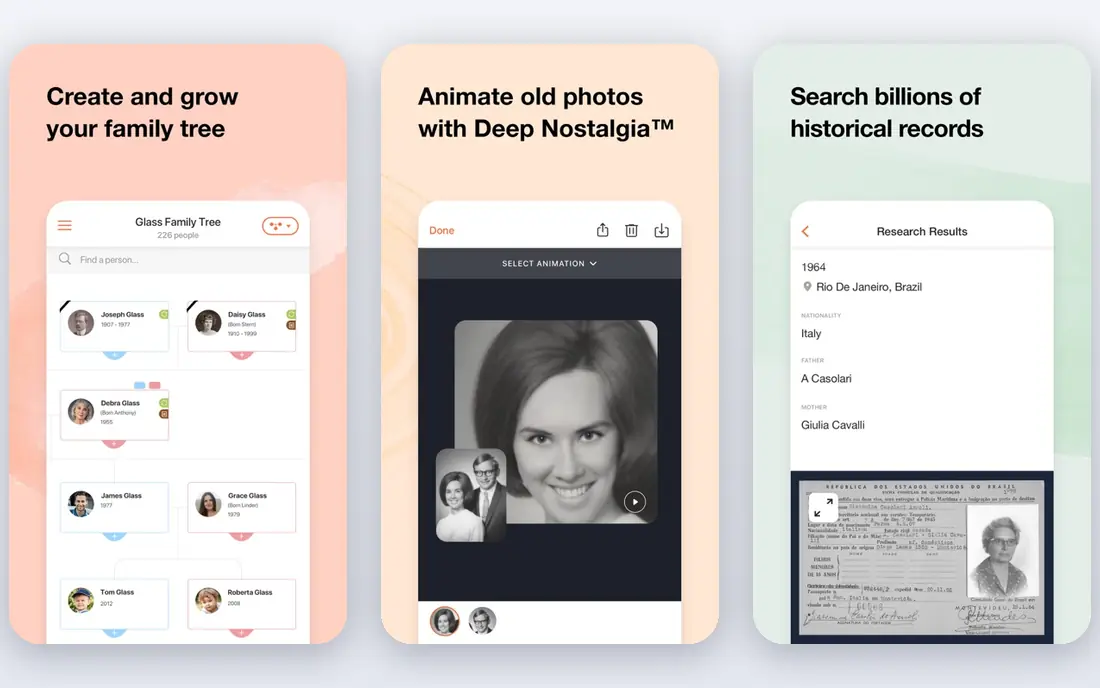
MyHeritage Photo Enhancer is built for family history. Upload an old photo, and it sharpens faces, improves clarity, and can add colour, all in a few clicks.
For a family archive, the context helps. Photos sit alongside a family tree, so a restored image can be shared with relatives who know the people in it.
The catch is subscription and variation. Full features need a paid plan, and a badly faded or torn photo may still need manual repair after AI enhancement.
- Easy enhancement and colour for old photos
- Family tree context
- Simple sharing
- Full features need a subscription
- Enhancement quality varies by photo condition

Remini is the phone-first choice for old portraits. Its face enhancement can turn a soft, faded portrait into a sharper image that looks good on a screen.
The one-tap workflow is the appeal. A user does not need to learn editing, and results arrive quickly enough to try several photos in one sitting.
The downside is smoothing. Some faces can look overly smooth or slightly changed, so a family should compare the result with the original before printing it as a keepsake.
- Strong face enhancement on mobile
- Simple one-tap workflow
- Popular for old portraits
- Subscription needed for full quality
- Results can look smoothed on some faces
VanceAI Photo Restorer is built for damaged photos, not just soft ones. It targets scratches, stains, and fading, which suits scans of prints that have lived in boxes for decades.
Batch processing helps for an archive. A family with many photos can run several at once, rather than fixing one image at a time.
The catch is credits and scan quality. Credit pricing can grow with a large archive, and a low-resolution scan will limit what any AI tool can recover, no matter how good the model is.
- Dedicated old photo repair tools
- Scratch and damage handling
- Batch processing options
- Credit-based pricing can add up
- Web quality depends on the uploaded scan
Photoshop is the professional choice for restoration that must be exact. Layers, clone, and heal tools let an editor rebuild a torn corner or a missing detail by hand, with full control.
AI tools inside Photoshop help too. Remove and generative fill can clear damage, while manual tools finish the details that AI misses.
The downside is cost and skill. A subscription and a learning curve make Photoshop overkill for one photo, but it is the right tool for a print, a book, or a damaged image that matters.
- Full manual repair with clone, heal, and layers
- AI remove and generative fill
- Print-ready output
- Subscription cost and learning curve
- Overkill for a single quick fix
Topaz Photo AI suits scans that need to look good in print. Its sharpening and noise reduction can rescue a soft scan, and face recovery helps old portraits without a phone-only workflow.
Desktop processing is a strength for large files. A high-resolution scan can be enhanced at full size, which matters for a framed print.
The limit is damage repair. Topaz excels at clarity, but a torn or badly scratched photo may still need Photoshop or a dedicated restorer for the physical damage.
- Strong sharpening and noise reduction
- Face recovery
- Desktop processing for large files
- One-time price is higher than a phone app
- Not a dedicated scratch repair tool
SoftOrbits Photo Retoucher
Best for: Windows users removing scratches and objects
SoftOrbits Photo Retoucher is a focused Windows tool for damage. It removes scratches, stains, and unwanted objects with brushes and clone tools that are easy to learn.
For a user who wants manual control without Photoshop, that focus helps. A scratch can be painted out in minutes, and the interface stays simple.
The catch is platform and AI depth. It is Windows focused, and its AI enhancement is less advanced than Topaz, so it suits damage repair more than face enhancement.
- Scratch, stain, and object removal tools
- Simple interface
- One-time purchase option
- Windows focus
- AI enhancement is less advanced than Topaz or Photoshop
AKVIS Retoucher is a specialist tool for manual repair. It removes scratches, dust, and small defects with controls that let an editor tune the repair to the photo.
As a plugin or standalone app, it fits into an existing editing workflow. A Photoshop user can add it for retouching without changing their main editor.
The downside is age and learning time. The interface feels dated, and the best results need practice, so a casual user may prefer a one-tap app for a quick fix.
- Manual scratch and dust removal
- Plugin and standalone versions
- Fine control over repair
- Interface feels dated
- Learning curve for best results
Movavi Photo Editor is the beginner-friendly desktop option. Enhancement, colour correction, and object removal sit in a guided interface that does not assume editing experience.
For a family with a handful of photos, that ease matters. A user can improve colour, remove a scratch, and export a print file without learning layers.
The limit is severe damage. A badly torn or faded photo may need a specialist tool, and Movavi AI features are simpler than those in Photoshop or Topaz.
- Easy enhancement, colour, and object removal
- Guided tools
- Affordable one-time options
- Less depth for severe damage
- AI features are simpler than pro tools
How we picked these
We started with products that exist and work today, and that truly fit best ai photo restoration tools. We checked each vendor official homepage, pricing page, and feature list, and we left out products that were discontinued, that only partly fit the topic, or that had no clear official home. Where we could not verify a price, we wrote See website rather than guessing.
We also weighed fit for different buyers. A tool can be excellent for one person and wrong for another, so we looked at ease of use, core features, free options, and honest limits. That is why the list includes free tools, mid-priced tools, and enterprise options, instead of only the most famous names.
How to choose a photo restoration tool
Start with the job, not the feature list
Write down the one job you need done most often, and the one job you need done second. A tool that does those two jobs well will serve you better than a tool with a long feature list that misses your main need. Test that job in a free plan or trial before paying, and bring a real example from your own work, not just a demo file.
Check total cost and limits before you commit
Look past the headline price. Check seat costs, per-secret or per-site charges, renewal prices, and what happens when you hit a limit. A free plan that caps your main job is not really free, and a low monthly price that renews much higher can surprise you in year two. Read the pricing page and the limits page together.
Test the everyday workflow, not just the demo
A demo can hide friction. Try the steps you will repeat, such as adding a new item, sharing with a teammate, or exporting a file. If those steps feel slow or confusing in a trial, they will feel worse after a year of daily use. Ask a teammate to try the same steps, since a second view often catches problems the first user missed.
Plan for growth and for leaving
Choose a tool that can grow with you, but also check how you can export your data if you leave. A tool that locks your work inside a closed format can cost more later than a slightly pricier tool with open export. Keep a copy of your key data outside the tool, and note the export steps before you build a large project in it.
FAQ
What is the best option for best ai photo restoration tools?
There is no single best option for every buyer, because best ai photo restoration tools covers different budgets and skill levels. For most people, the first product on this list is a safe starting point, while a specialist need may point to a later product. Start with your main job, test a free plan or trial, and compare total cost before you commit.
Is there a free option for best ai photo restoration tools?
Yes, several products on this list offer a free plan or a free trial, and we note that in the comparison table. A free plan is often enough for a small project or a test, but it may limit features, storage, or team size. Check the free limits before you build a large project on a free tier.
How much should I expect to pay?
Prices range from free to quote-based enterprise plans, and the right price depends on team size, volume, and features. A solo user can often start free or at a low monthly price, while a team or a business with strict controls will pay more. Compare the total annual cost, including seats and add-ons, not just the monthly headline.
How do I avoid picking the wrong tool?
Define your main job, test it in a trial, and check export options before you commit. Read recent user reviews for problems that affect your use case, and avoid tools that hide pricing or lock your data. If a tool feels confusing in a trial, it will rarely feel simpler after you pay.
Can I switch tools later if I change my mind?
In most cases, yes, but switching takes time, especially if you have built a large project or a large collection. Check export formats and migration guides before you start, and keep a backup of your key data. A tool with clear export options is safer than one that makes leaving hard.