Best Free AI Photo Editor Apps in 2026: 8 Apps Compared
Compare the best free AI photo editor apps, with free plan limits, background removal, and the best pick for product photos, portraits, and social posts.

- Editor's choice
 PhotoRoom
Product photos
Starts at$12.99 per monthVisit photoroom.comFull review - Great alternative
 Canva
Social posts and quick designs
Starts at$15 per monthVisit canva.comFull review - Also consider
 PicsArt
Creative effects and social edits
Starts atSee websiteVisit picsart.comFull review
TL;DR:
- PhotoRoom is our pick for product photos, with fast background removal and clean listing images.
- Google Photos and Canva suit everyday edits, with free tools that need no install or design skill.
- Pixlr and Fotor are the best browser options when you do not want to install an app.
- Free AI plans all have limits, so check watermarks, export size, and daily caps before a big project.
Quick comparison
| Tool | Best for | Starts at | Free plan? | |
|---|---|---|---|---|
| PhotoRoom | Product photos | $12.99 per month | Yes | Visit |
| Canva | Social posts and quick designs | $15 per month | Yes | Visit |
| PicsArt | Creative effects and social edits | See website | Yes | Visit |
 Pixlr | Browser editing with AI tools | See website | Yes | Visit |
 Fotor | Easy browser edits and collages | $8.99 per month | Yes | Visit |
 Adobe Lightroom | Photo quality and batch edits | $11.99 per month | Yes | Visit |
 Google Photos | Everyday edits and storage | Free | Yes | Visit |
 Remini | Restoring old and blurry photos | $6.99 per week | Yes | Visit |
The best free AI photo editor apps
Free AI photo editors vary a lot. Some give you a few AI edits a day, some watermark exports, and some keep the best tools behind a paid plan. The apps below all have a usable free tier, but the right one depends on whether you edit products, portraits, or social posts.
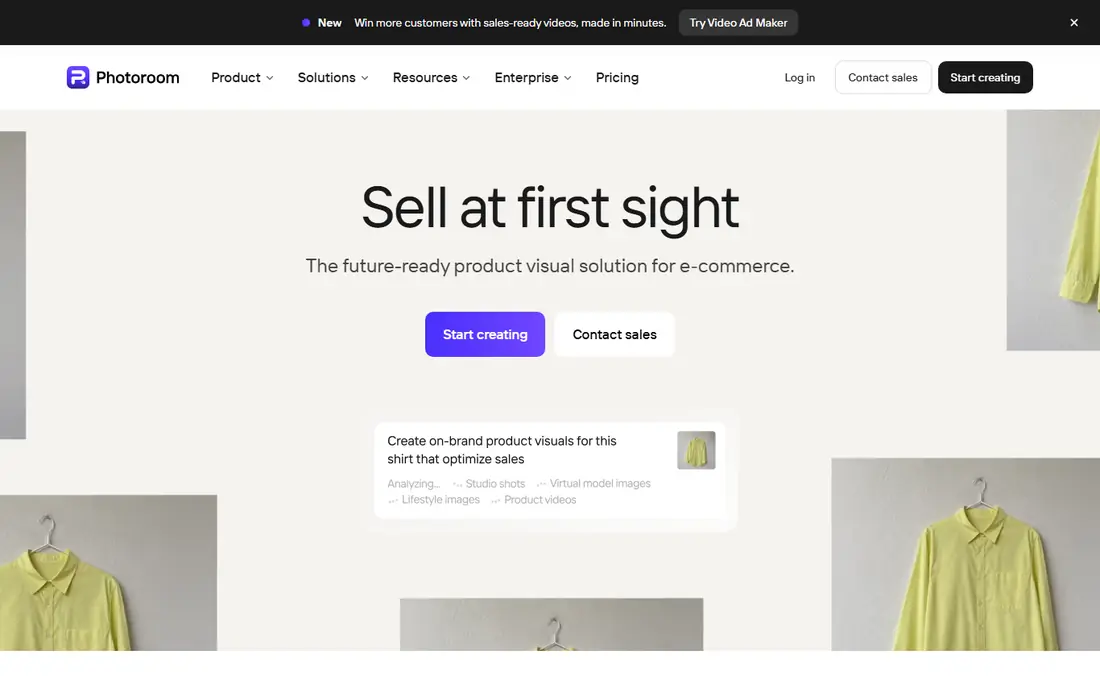
PhotoRoom is built for sellers who need clean product images fast. Remove a background, drop in a plain or styled backdrop, and export a listing-ready image in minutes. Templates for marketplaces and social shops save time, and the app works on phones and in a browser.
The free tier is a trial in practice, not a long-term studio. Exports are watermarked and limited per day, so serious sellers will need Pro. If you only need a few product photos a month, the free tier is enough to test quality. If you sell regularly, budget for Pro.
- Fast background removal
- Product templates
- Batch editing on paid plans
- Free exports carry a watermark
- Daily export limits on the free tier

Canva is less of a pure photo editor and more of a design tool that includes photo editing. That is useful for social posts, ads, and thumbnails, where text, shapes, and brand colors matter as much as the photo itself. The free tier includes basic edits, filters, and templates, and it runs in a browser or app.
Serious photo work hits a paywall fast, since background removal and several AI tools need Pro. Photo quality controls are also simpler than Lightroom. Use Canva free for posts and promos, and pair it with a dedicated editor if you need detailed retouching.
- Huge template library
- Easy background remover on Pro
- Team sharing
- Best AI photo tools need Pro
- Free exports can feel limited for photo work
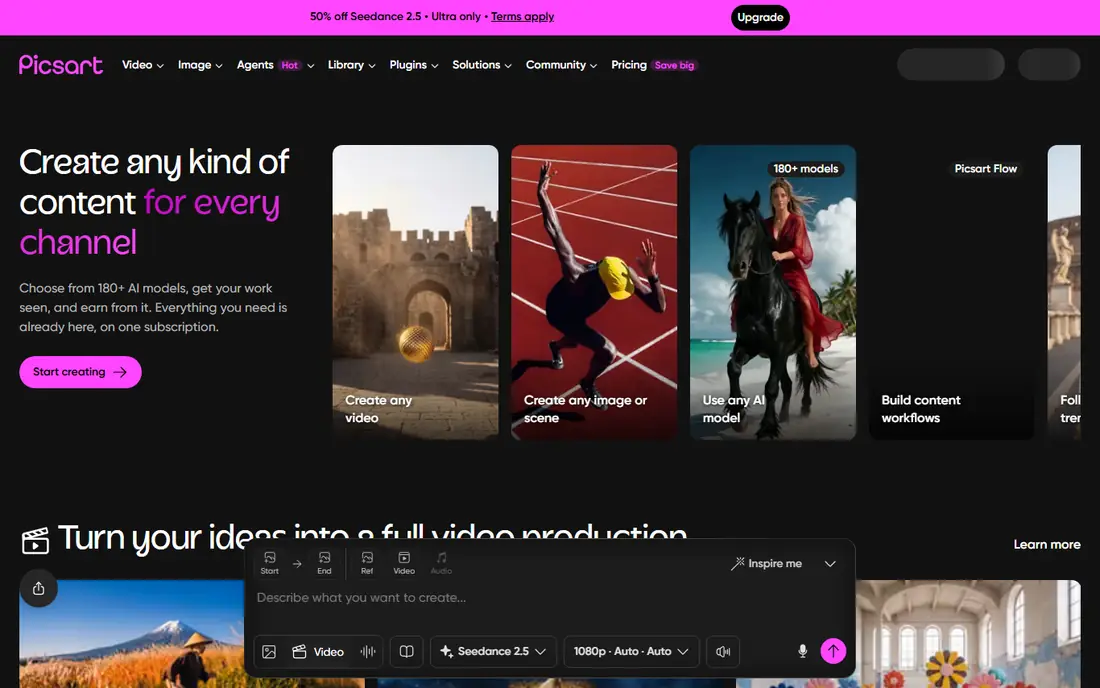
PicsArt suits creators who want bold effects, stickers, collages, and AI-generated styles rather than quiet, natural edits. The mobile app is fast for social content, and its AI tools can remove backgrounds, enhance images, and apply artistic looks in a few taps. Templates help when you need a post quickly.
The free experience includes ads and frequent prompts to upgrade, which can slow casual use. Some of the newest AI features also need a paid plan. If you enjoy playful, social-first edits, PicsArt is a strong free start. If you want clean product or portrait work, PhotoRoom or Lightroom may fit better.
- Wide effect and sticker library
- AI background tools
- Active creator community
- Ads and upsells on the free tier
- Some AI features need a subscription
Pixlr runs in a browser and offers layered editing that feels closer to desktop software than most web editors. Its AI tools include background removal, object removal, and generative fill, which help clean up a photo without installing an app. That makes it useful on a shared or borrowed computer.
Free use comes with ads and limits on saves and AI generations, and the interface can feel busy at first. Still, for a free browser editor with real layers and AI help, Pixlr is one of the best options here. Save often, and check export size before you use an image for print.
- No install needed
- Layered editing
- AI remove and generative tools
- Free tier shows ads
- Some exports and AI uses are limited
Fotor is a friendly browser editor for people who want a quick enhancement, a collage, or a social graphic without learning complex tools. Its AI enhancer can sharpen a dull photo, and its background remover works well for simple subjects. Collage layouts and templates make it easy to share a set of images.
The free tier is usable for basic edits, but many AI features and higher-quality exports sit behind Pro. It also lacks the deep manual controls of Lightroom. For casual users who want a fast, good-looking result, Fotor is a solid free choice.
- Simple interface
- AI enhancer and background remover
- Collage tools
- Advanced AI features need Pro
- Free exports may include limits
Lightroom Mobile offers genuinely useful free editing, including exposure, color, cropping, and presets, with sync to desktop on paid plans. It suits photographers who shoot often and want a consistent look across a batch of images. Presets also help when you need a repeatable style for a feed or portfolio.
The free tier leaves out some masking, healing, and AI features that many users want, and the full toolset needs a subscription. Beginners may also find the controls deeper than a simple app. If photo quality matters more than one-tap AI effects, Lightroom is the best free starting point here.
- Strong color and exposure tools
- Presets
- Desktop and mobile sync
- Masking and AI tools need a paid plan
- Learning curve for beginners
Google Photos is already on many phones, and its free editing tools cover the basics well: crop, light, color, filters, and AI suggestions for a quick fix. Search and backup make it easy to find an old photo and edit it without moving files between apps. For everyday snapshots, that convenience is hard to beat.
It is not a full editor. Advanced retouching, layered work, and detailed masking are limited, and some AI features vary by device or plan. Use Google Photos for quick everyday edits, and move to Pixlr, Lightroom, or PhotoRoom when a photo needs more work.
- Simple AI suggestions
- Backup and search
- No install for Android users
- Editing depth is limited
- Some AI features need a paid plan or device
Remini specializes in enhancing blurry, low-resolution, and old face photos. One tap can sharpen a portrait that other editors struggle with, which makes it popular for restoring family photos and improving old phone images. The workflow is simple, with little manual editing needed.
Free use is limited to a small number of daily enhancements with ads, and the paid plan bills weekly, which adds up fast if you forget to cancel. Results can also look too smooth on some faces, so check the original before you share an enhanced version. For a handful of old photos, Remini is worth a trial. For regular editing, a monthly plan elsewhere is usually cheaper.
- Strong face enhancement
- Good for old photos
- Simple one-tap workflow
- Weekly billing adds up
- Results can look over-smoothed
How we picked these
We compared official pricing pages, app store listings, and feature pages for AI photo editors with a usable free tier in 2026. We favored apps that let you export a real image for free, even with limits, and we noted watermarks, ads, and caps clearly. We left out editors with no free tier, no AI tools, or no current product page.
How to get the most from a free plan
Start with the job, not the app. Use PhotoRoom for products, Remini for old portraits, Lightroom for photo quality, and Canva or PicsArt for social posts. That way you use each free tier for what it does best, instead of paying for one app to do everything poorly.
Check the export before you commit
Test a free export at full size and look for a watermark, a size limit, or a color shift. A free edit that looks good on a phone screen may not print well or work as a marketplace listing. If you need clean, high-resolution exports every week, a paid plan will usually save time and frustration.
Keep originals safe
AI edits can change faces, textures, and details in ways that are hard to undo. Keep the original photo, save AI versions as copies, and compare them side by side before you post or print. That habit matters most for portraits and old family photos.
FAQ
What is the best free AI photo editor app?
PhotoRoom is our pick for product photos, Lightroom is our pick for photo quality, and Google Photos is our pick for quick everyday edits. There is no single winner, since free tiers limit different features.
Are free AI photo editors really free?
Yes, but with limits. Free tiers may cap daily AI edits, add a watermark, show ads, or limit export size. Read the free plan details before a large project, and treat most free tiers as a trial for serious work.
Which free AI photo editor has no watermark?
Lightroom Mobile and Google Photos generally export without a watermark on free edits, though some AI features need a paid plan. PhotoRoom free exports carry a watermark, so check each app before you publish an image.
Can AI photo editors remove backgrounds for free?
Yes, with limits. PhotoRoom, Pixlr, Fotor, Canva, and PicsArt all offer background removal, but free use may be capped or watermarked. For a few images, the free tier is usually enough. For a catalog, a paid plan is faster.
Is Remini free?
Remini offers limited free enhancements with ads, but full use needs a subscription that bills weekly. It is best for a small number of old or blurry photos, not for daily editing, since weekly billing adds up quickly.