Best AI Photo Animation Tools in 2026: 7 Tools Compared
Compare the best ai photo animation tools for family photos, social clips, and creative projects, with prices, free plans, and honest trade-offs for 2026.

- Editor's choice
 MyHeritage Deep Nostalgia
Old family portraits
Starts atSee websiteVisit myheritage.comFull review - Great alternative
 Runway
Creative video projects
Starts atSee websiteVisit runwayml.comFull review - Also consider
 Pika
Short social clips
Starts atSee websiteVisit pika.artFull review
TL;DR:
- MyHeritage Deep Nostalgia remains the simplest choice for animating old family portraits, while Runway and Pika give creators far more control over motion and style.
- Free plans are useful for a first test, but most tools add a watermark, limit length, or cap monthly credits until you pay.
- Short face animations and full text-to-video clips are different jobs, so pick a tool built for the result you want rather than the longest feature list.
- Check consent and privacy before animating a photo of another person, and keep original files safe before you upload anything.
Quick comparison
| Tool | Best for | Starts at | Free plan? | |
|---|---|---|---|---|
| MyHeritage Deep Nostalgia | Old family portraits | See website | Yes | Visit |
| Runway | Creative video projects | See website | Yes | Visit |
| Pika | Short social clips | See website | Yes | Visit |
 Kaiber | Music and art videos | See website | Yes | Visit |
 Viggle | Fun character movement | See website | Yes | Visit |
 Luma Dream Machine | Text-to-video scenes | See website | Yes | Visit |
 CapCut | Everyday phone edits | Free | Yes | Visit |
The best ai photo animation tools
We compared official feature pages, pricing pages, app listings, and public reviews to find tools that turn a still photo into motion without demanding advanced editing skills. The list below covers family history, social content, and more ambitious creative work.
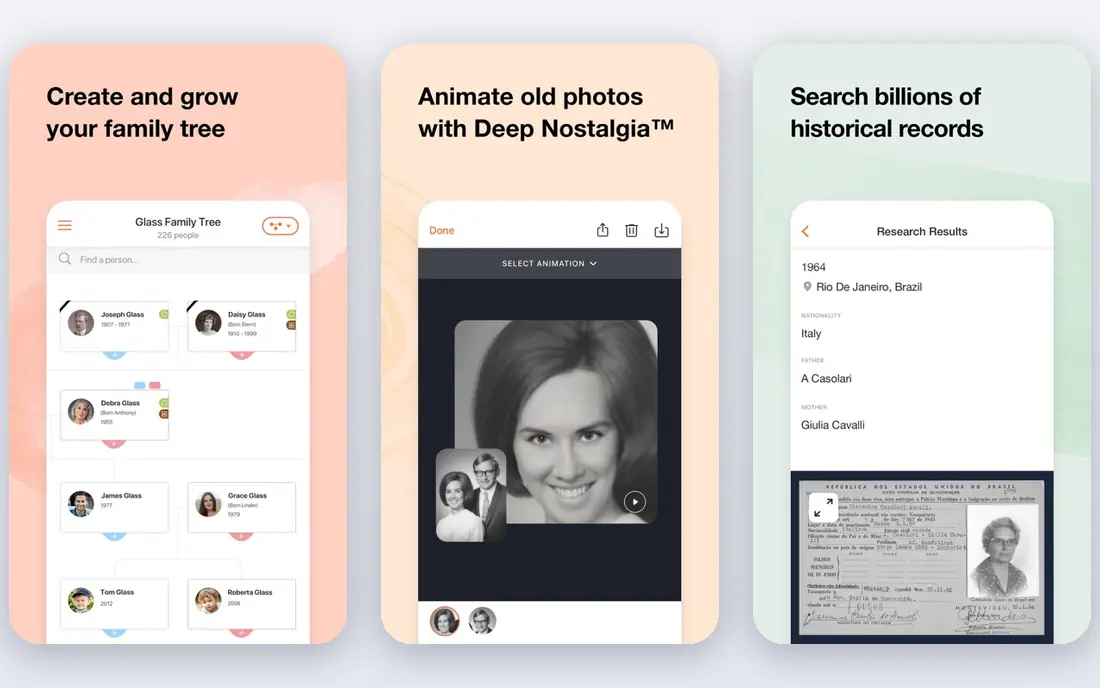
MyHeritage Deep Nostalgia is the easiest starting point if your main goal is to see a face in an old portrait blink, smile, or turn its head. You upload a photo, choose a face when more than one appears, and the tool applies a preset sequence. There is no timeline to learn and no prompt writing to master, which matters when you are working with scanned family photos rather than a creative brief.
The trade-off is control. You cannot direct a detailed scene or write a long script for the movement, and results vary with photo quality, lighting, and face angle. For family historians, though, that simplicity is the point. The same account also gives access to photo repair and family tree tools, so animation fits into a wider project instead of standing alone. Try the limited free animations first, and use a clear, front-facing portrait for the best chance of a natural result.
- Very simple upload process
- Good for faces in old photos
- Pairs with photo repair tools
- Limited motion control
- Paid plans are tied to wider MyHeritage plans

Runway suits creators who want to move beyond a preset face animation and shape a scene with prompts, reference images, and editing controls. You can start from a photo, describe the motion you want, and then refine the result, which opens the door to product shots, short films, and social concepts that need a specific mood. The interface rewards patience, and the best results usually come after a few tries with clearer prompts.
That flexibility comes with cost and complexity. Credit-based plans mean long or repeated generations add up, and beginners may feel lost among the many tools on offer. Runway is still our pick for ambitious work because the control is real, not just a longer list of filters. Start with the free credits, keep clips short while you learn, and save the paid credits for versions you actually plan to publish.
- Strong text and image-to-video controls
- Useful for longer creative scenes
- Regular model updates
- Credits can run out fast on longer clips
- Learning curve is steeper than phone apps

Pika is a strong middle ground for social creators who want a photo to move in a clear, shareable way without opening a full video editor. Upload an image, describe the action, and you can get a short clip that works well for reels, shorts, and posts. The tool handles simple actions such as a person walking, a camera push, or an object shifting, and the web workflow keeps the process quick.
The main limit is length. Lower plans are built for short clips, so Pika is not the best choice for a long story or a detailed scene that needs many connected shots. Results can also vary, so plan on generating more than one version and picking the strongest. For quick, eye-catching posts, that extra generation is usually worth it, and the free plan is enough to learn how your prompts affect the output.
- Fast for short clips
- Good prompt-based motion
- Simple web workflow
- Short clip lengths on lower plans
- Style can vary between generations
Kaiber stands out when you want a photo to become something artistic rather than realistic. It leans into stylized motion, flowing transitions, and music-driven visuals, which makes it a good fit for album art, lyric visuals, and creative social posts. You can start from an image or a text idea, pick a style, and build a clip that feels designed rather than simply animated.
That artistic focus is also its limit for family photos. If you want a grandmother in a portrait to look like herself and move naturally, a more realistic tool will serve you better. Kaiber is at its best when the goal is mood, color, and rhythm. Use it for projects where a bold look matters more than a lifelike face, and check the credit balance before you start a longer sequence.
- Strong stylized looks
- Good for music visuals
- Works from images and text
- Less suited to realistic faces
- Credit limits shape how much you can test
Viggle became popular for playful clips where a photo character dances or copies movement from a reference video. The appeal is speed and fun: pick a character image, choose a movement template, and share a clip that fits a trend or a joke among friends. For birthday posts, fan edits, and light social content, that formula works well.
The honest limit is precision. Viggle is not built for careful, realistic acting or for work where every hand movement must look correct. Source quality matters a lot, and a blurry photo or a complex reference can produce odd results. Treat it as a fun creative tool, get consent before using a photo of another person, and do not present its output as real footage of someone doing something they did not do.
- Fun dance and movement templates
- Easy character swaps
- Popular for social trends
- Quality varies with source video
- Less control over fine detail
Luma Dream Machine is a good choice when you start with an idea or a photo and want a scene with camera movement, depth, and atmosphere. You can describe a shot, add a reference image, and get a clip that feels more like a short film moment than a simple filter. Camera moves such as slow pushes and pans are a particular strength, which helps still images feel less flat.
Free use can involve waiting during busy periods, and longer or more complex scenes may need several attempts to get right. That is normal for this kind of tool, and it helps to write prompts that name the subject, the action, and the camera move in plain words. For creators who want polished short scenes for social posts or mood boards, Luma is worth a place in the test set alongside Runway and Pika.
- Strong scene generation from text and images
- Good camera motion
- Clean web interface
- Generation queues can slow free use
- Longer scenes need careful prompting
CapCut is the practical pick for people who already edit on their phone and want photo animation inside a normal editing app. You can animate a photo, add text, music, and transitions, and finish the whole post in one place. That all-in-one flow matters when you do not want to move files between three apps just to publish a short clip.
The trade-off is depth. CapCut covers a wide range of editing jobs, so its AI animation tools are not as specialized as Runway or Pika for a single task. Some templates, effects, and higher-quality exports sit behind a paid plan, so check what the free version allows before you plan a project around it. For everyday creators, though, the convenience often wins, and the free plan is a fair way to test whether its animation style fits your posts.
- Familiar editing tools on phone and desktop
- Many templates
- Easy sharing to social apps
- AI animation is one feature among many
- Some effects and exports need a paid plan
How we picked these
We compared official feature pages, pricing pages, and app store listings, and we weighed how each tool handles a real starting photo, how much control it gives over motion, and what the free plan actually allows. We favored tools that are still active in October 2026, that state their pricing or credit model clearly, and that cover different needs rather than eight versions of the same filter. We did not claim hands-on testing, and prices can change, so check the vendor page before you buy.
What to check before you animate a photo
Start with the photo itself. A clear, well-lit, front-facing image gives most tools a better chance than a small, cropped, or heavily damaged scan. If you are working with an old print, scan at a good resolution and keep an untouched copy. That way a failed animation costs you time, not the only version of a family image.
Next, match the tool to the output. Face animation tools suit portraits, talking-head tools suit spoken messages, and text-to-video tools suit scenes and concepts. A tool that is great for a dance trend may be a poor choice for a memorial video, and a realistic face tool may be dull for a music visual. Write down the length, the style, and the place you will publish before you spend credits.
Consent, privacy, and cost
Only animate photos you have the right to use, and get clear permission before animating a photo of another living person. Avoid uploading sensitive images to a service whose privacy policy you have not read, and delete uploads when a tool allows it. On cost, track credits carefully. Short tests on a free plan will tell you more than a long feature list, and a monthly plan only makes sense once you know how many finished clips you produce each month.
FAQ
What is the best free ai photo animation tool?
A free plan is best for learning, not for a large project. MyHeritage Deep Nostalgia and CapCut are good free starting points for portraits and phone edits, while Runway, Pika, and Luma offer free credits for creative tests. Expect watermarks, short lengths, or credit caps on free plans, and check the current terms before you rely on one for paid work.
Can AI animate an old black and white photo?
Yes, in many cases, though results depend on the quality of the scan. A clear face with good contrast animates better than a faded or torn print. Tools that pair animation with photo repair, such as MyHeritage, can help, but repair first and keep the original scan untouched.
How long are clips from these tools?
Most clips are short, often a few seconds on free and lower paid plans. Talking-head tools can run longer when tied to audio, while text-to-video tools usually favor short scenes. If you need a longer video, plan to stitch several short clips together in an editor such as CapCut.
Do I need editing experience to use these tools?
No, most tools on this list are built for beginners. Face animation and template tools need only an upload and a few choices, while Runway and Luma reward clearer prompts but still work from a simple description. Start short, test one idea, and build skill with each generation.
Is it safe to upload family photos to these tools?
It depends on the service and its privacy policy, so read how uploads are stored, whether they are used for training, and how to delete them. Avoid uploading photos of children or sensitive images unless you are sure about the policy and have permission. When in doubt, use a less sensitive test photo first.