Best AI Image to Video Tools in 2026: 9 Tools Compared
Compare the best AI image to video tools for turning photos into moving clips, with pricing, quality, controls, and honest limits for each of the nine picks.
- Editor's choice
 Runway
High-quality short films and ads
Starts atSee websiteVisit runwayml.comFull review - Great alternative
 Kling
Realistic motion and fine detail
Starts atSee websiteVisit klingai.comFull review - Also consider
 Hailuo
Stylized clips for social media
Starts atSee websiteVisit hailuoai.videoFull review
TL;DR:
- Runway, Kling, and Veo lead on motion quality and camera control for short clips.
- Pika, Luma, and PixVerse offer easier starts and lower prices for social clips and quick ideas.
- Sora and Veo suit longer, more cinematic prompts, but access and pricing vary by plan.
- Hailuo and Kaiber appeal to creators who want stylized or music-driven motion from a single image.
- Every tool still struggles with hands, text, and long consistent motion, so keep clips short and check each result.
Quick comparison
| Tool | Best for | Starts at | Free plan? | |
|---|---|---|---|---|
| Runway | High-quality short films and ads | See website | Free trial | Visit |
| Kling | Realistic motion and fine detail | See website | Free trial | Visit |
| Hailuo | Stylized clips for social media | See website | Free trial | Visit |
 Pika | Easy effects and social clips | See website | Free trial | Visit |
 Luma Dream Machine | Fast, smooth image to video clips | See website | Free trial | Visit |
 Sora | Cinematic clips from images and prompts | See website | Free trial | Visit |
 Veo 3 | Realistic video with audio | See website | Free trial | Visit |
 PixVerse | Quick effects, memes, and transitions | See website | Free trial | Visit |
 Kaiber | Music-driven and stylized video | See website | Free trial | Visit |
The best ai image to video tools
We compared motion quality, control over camera and subject, clip length, and pricing models across tools available in October 2026. Image to video tools turn a still photo into a moving clip by following a text prompt, and the best ones keep the subject recognizable while adding believable motion.
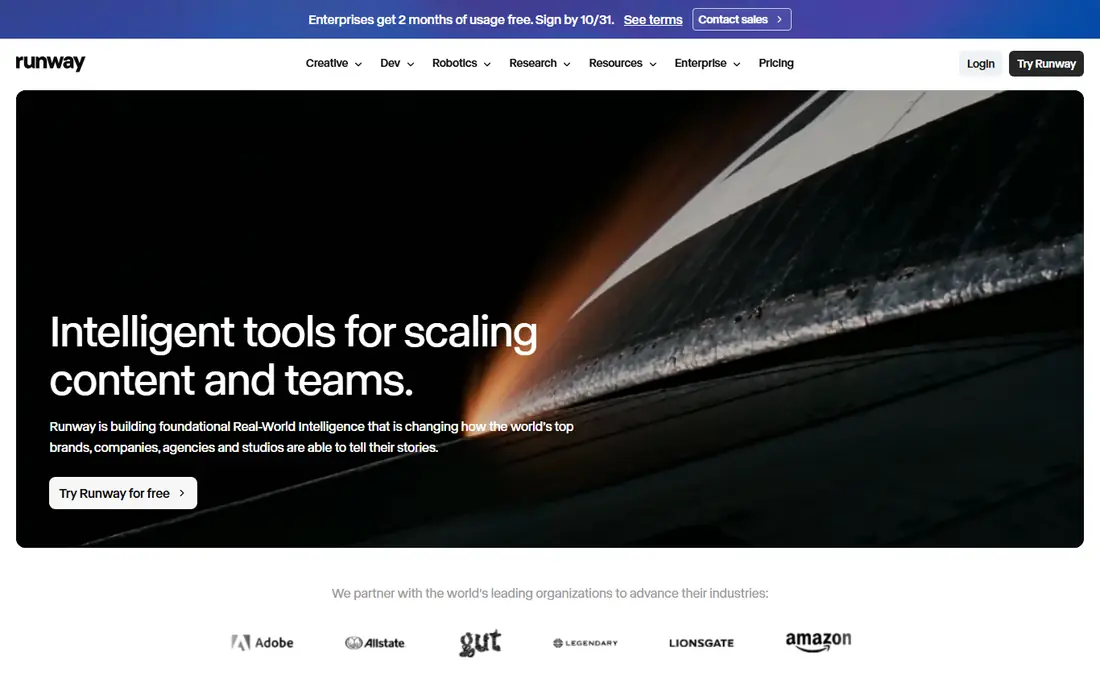
Runway has become a standard choice for creators who need polished short clips from images. Its image to video mode respects the starting image well, and camera controls help you ask for a slow push-in, a pan, or a gentle orbit without losing the subject. That control matters for product shots and portraits, where a wild camera move would ruin the frame.
The cost model is the catch. Free credits cover only a few tests, and higher quality settings use more credits, so frequent creators will need a paid plan. Clips also stay short, so plan for cuts rather than one long take. For a best image to video AI tool with professional control, Runway remains a top pick.
- Strong motion and camera controls
- Good for product and portrait clips
- Active creator community
- Credits run out fast on higher quality
- Longer clips need careful prompting
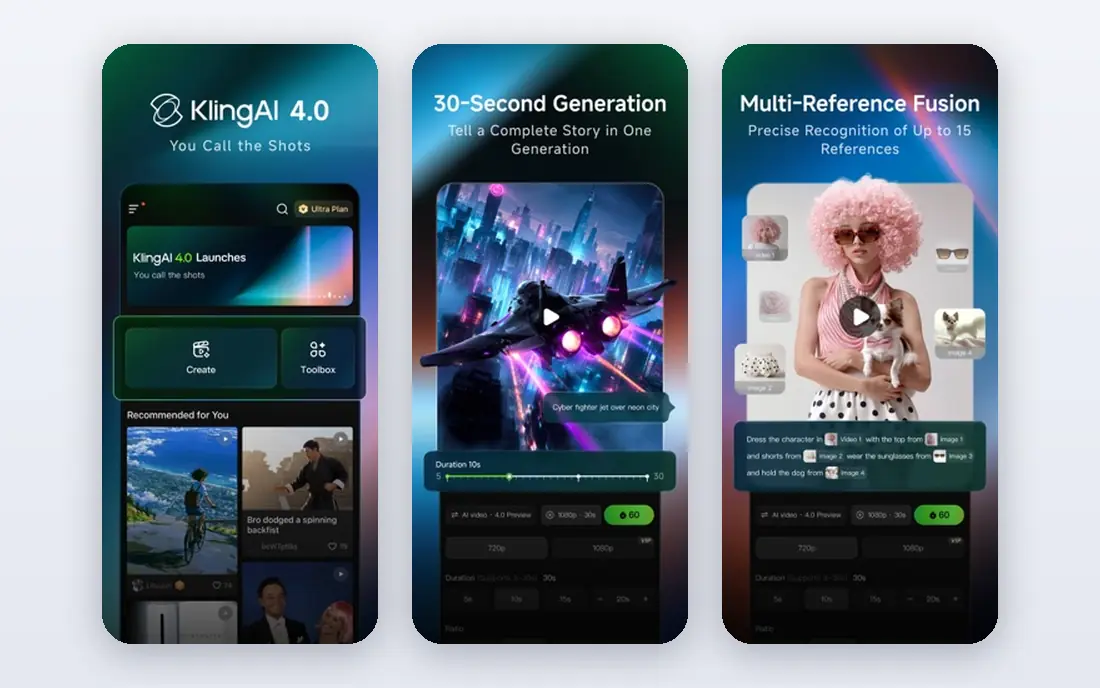
Kling stands out for realistic motion, especially for people, animals, and everyday scenes. Clothes move naturally, light shifts in a believable way, and small details such as hair and fabric hold up better than in many rivals. That realism makes Kling a strong choice for social clips that need to look less artificial.
Access and pricing can be confusing, since plans and availability differ by region and by partner platform. Queue times also vary when demand is high. Still, for a best image to video AI app that prizes realism, Kling is one of the first tools we suggest testing with your own photos.
- Realistic movement and textures
- Good handling of people and scenes
- Multiple quality modes
- Queue times can vary
- Interface and pricing vary by region

Hailuo, from MiniMax, is popular for turning a photo into a lively short clip with clear motion and color. It handles stylized subjects well, including illustrated portraits and product shots, and the prompt flow is simple enough for first-time users. Social creators like it because results are often ready to post with little editing.
Realistic people can be less consistent than in Kling or Veo, and free credits limit how many ideas you can test. Treat Hailuo as a fast idea tool, not as a replacement for filmed video, and generate a few versions of each prompt. For fun, shareable clips, it offers strong value for the effort.
- Strong stylized and anime-style motion
- Easy prompt flow
- Good for short social clips
- Realism varies by subject
- Credit limits apply on free use
Pika focuses on making image to video feel easy. Upload a photo, write a short prompt or pick an effect, and you get a clip in a few steps. Effects such as object transformations and playful transitions suit TikTok, Reels, and Shorts, where a short, eye-catching clip matters more than perfect realism.
The trade-off is that motion can look more animated than lifelike, especially for people. Paid plans add higher quality and longer use, while free credits are limited. Pika is a good best image to AI video app for beginners, meme-style clips, and quick tests before moving to a heavier tool.
- Simple interface
- Fun effects and transitions
- Good for beginners
- Motion can look stylized rather than real
- Higher quality needs a paid plan
Luma Dream Machine earned attention for smooth, fast results from a single image. Camera moves feel fluid, and the tool handles scenery, products, and portraits with a clean look. The workflow is simple, which helps when you want to test many images in one session without learning a complex interface.
Longer or more complex prompts can break consistency, with subjects shifting shape or background details changing. Advanced camera and editing controls are also thinner than in Runway. For quick, smooth clips and for testing ideas, Luma remains a strong, low-friction pick among the best AI tools for image to video.
- Fast generation
- Smooth camera motion
- Simple image plus prompt workflow
- Consistency drops on longer clips
- Advanced controls are limited
Sora, from OpenAI, aims for film-like results with coherent scenes and natural camera work. When it works well, a still image becomes a clip that feels directed rather than random, with light, depth, and motion that fit the scene. That makes it appealing for storyboards, ads, and short creative pieces.
Access is the main limit. Availability and pricing depend on your ChatGPT or Sora plan, and generation can queue at busy times. Clips remain short, so Sora suits scenes and moments, not full videos. For creators who already use OpenAI tools, Sora is a natural next step for image to video work.
- Strong cinematic framing
- Good scene coherence
- Integrates with ChatGPT plans for some users
- Access and pricing depend on plan
- Longer waits at peak times
- Still short clips
Veo 3, from Google DeepMind, is notable because it can generate sound alongside video, including dialogue, sound effects, and ambient audio in supported flows. Motion and lighting look realistic for many scenes, and the tool handles camera moves and subject action with good coherence. For creators who want a clip that feels complete without separate audio editing, that is a real advantage.
The limits are access and cost. Veo availability depends on your Google plan and region, and high-quality generation uses credits quickly. Prompting also matters, since vague prompts produce vague motion. Veo suits creators who want realistic results and who are already in the Google ecosystem, and it is worth testing with a short, specific prompt first.
- Realistic motion and lighting
- Can generate audio with video
- Strong Google integration
- Access varies by plan and region
- Costs can rise fast
- Needs careful prompting
PixVerse is built for speed and trends. Templates and effects let you turn a photo into a transformation, a dance-style clip, or a dramatic transition in minutes. That makes it popular for social creators who need many clips fast and who care more about impact than perfect realism.
Quality varies by effect, and realistic people can look less natural than in Kling or Veo. Free credits also limit testing, so pick effects that fit your image rather than trying every template. PixVerse is best as a fun, fast tool for social content, and it pairs well with a more realistic tool for serious projects.
- Fast, fun effects
- Easy templates
- Good for social trends
- Realism is limited
- Quality varies by effect
- Free credits are limited
Kaiber takes a different path, focusing on style and music rather than pure realism. You can turn an image into a moving, stylized clip that follows a song, with art styles that range from painterly to futuristic. Musicians and visual artists use it for lyric videos, album visuals, and social teasers that need a distinct look.
Realistic motion is not its strength, and the credit system means longer or higher-quality clips cost more. Style settings also take practice to control well. For a best AI image to video app with an artistic angle, Kaiber stands out, especially when the goal is mood and music rather than a lifelike scene.
- Strong style controls
- Music-reactive options
- Good for artists and musicians
- Less suited to realistic motion
- Pricing is credit-based
- Learning curve for styles
How we picked these
We compared official product pages, pricing models, clip controls, and public examples for image to video tools available in October 2026. We favored tools with a real image input mode, not text-only video, and we covered realistic, stylized, social, and cinematic use cases. We did not claim hands-on production tests, and we used See website for prices where plans and credits change often or vary by region.
How to get better results from image to video
Start with a clear, high-quality image. A sharp photo with a clear subject and simple background gives the model less to guess, and that shows in smoother motion. Crop to the framing you want in the final clip, since the tool will animate what it sees.
Write a prompt that describes motion, not just the scene
Name the subject, the action, and the camera move in one or two sentences. For example, state that a person smiles and turns slightly while the camera moves in slowly. Avoid asking for several actions at once, since the model will often drop one of them.
Keep clips short and plan for cuts
Most tools work best at five to ten seconds, with one main action per clip. Plan a series of short clips and edit them together, rather than asking for a long, complex scene. Check hands, faces, and text in each result, and regenerate when those details break.
Respect rights and disclosure
Use your own photos or images you have rights to use, and avoid turning photos of real people into misleading clips. Label AI video clearly when you post it, especially for ads or news-style content. That honesty protects your audience and your account.
FAQ
What is the best image to video AI tool overall?
Runway is our general pick for control and quality, while Kling leads for realistic motion and Veo leads for video with sound. The best tool depends on whether you want realism, style, or social speed, so test two or three tools with the same photo.
What is the best free image to video AI app?
Most tools offer free trials or limited free credits, including Runway, Pika, Luma, and PixVerse, but none offers unlimited free high-quality generation. Use free credits to test motion quality with your own images, then pay for the tool that fits your style.
How long can AI image to video clips be?
Most clips run from five to ten seconds, with some tools supporting longer generations at higher cost or lower quality. For longer stories, generate several short clips and edit them together. Consistency across clips remains a challenge, so keep subjects and prompts steady.
Why do faces and hands look wrong in AI video?
Faces and hands are hard for video models because they move in complex ways and viewers notice small errors quickly. Short clips, clear source images, and simple actions reduce errors. Regenerating with a simpler prompt often helps more than adding detail.
Can I use AI image to video tools for business ads?
Yes, for product shots, social ads, and storyboards, with care. Use images you own, check the tool terms for commercial use, and disclose AI use where required by the platform or client. Review every clip before publishing, since errors can hurt trust.
Do I need a powerful computer for these tools?
No, most image to video tools run in the browser or in an app, with generation done on the provider servers. You need a stable internet connection and a device that can upload images and preview video. Editing the final clips is where a stronger computer helps.