Best AI Image Restoration Tools in 2026: 8 Tools Compared
We compared the best ai image restoration tools for old photos, damage repair and upscaling, so you can restore family photos and prints with realistic results.
- Editor's choice
 Adobe Photoshop
Serious manual and AI restoration
Starts atSee websiteVisit adobe.comFull review - Great alternative
 Topaz Photo AI
Detail recovery and upscaling
Starts atSee websiteVisit topazlabs.comFull review - Also consider
 VanceAI
Fast web based restoration
Starts atSee websiteVisit vanceai.comFull review
TL;DR:
- Adobe Photoshop is the most complete choice for serious restoration work, combining AI tools with manual repair controls.
- Topaz Photo AI is our pick for detail recovery and upscaling, especially for prints and scanned photos that need sharpening.
- VanceAI and HitPaw suit users who want fast, web based restoration without learning a full editor.
- Remini and MyHeritage suit family photo projects on a phone, with simple enhancement and colourisation options.
- Fotor and Lets Enhance are good low cost options for quick enhancement of many images at once.
Quick comparison
| Tool | Best for | Starts at | Free plan? | |
|---|---|---|---|---|
| Adobe Photoshop | Serious manual and AI restoration | See website | Free trial | Visit |
| Topaz Photo AI | Detail recovery and upscaling | See website | Free trial | Visit |
| VanceAI | Fast web based restoration | See website | Free trial | Visit |
 Remini | Phone based photo enhancement | See website | Free trial | Visit |
 MyHeritage Photo Enhancer | Family history photos | See website | Free trial | Visit |
 HitPaw Photo Enhancer | Simple desktop enhancement | See website | Free trial | Visit |
 Fotor AI | Quick batch enhancement | See website | Free plan | Visit |
 Lets Enhance | Upscaling many images | See website | Free trial | Visit |
The best ai image restoration tools
We compared AI restoration tools on old photo repair, scratch and damage removal, face recovery, colourisation, upscaling and ease of use. The best ai tools for image restoration below cover phone apps, web tools and desktop editors, so you can pick based on how much control you want over the final result.

Photoshop remains the strongest choice when a photo needs more than a one click fix. AI features such as Neural Filters, Remove Tool and Generative Fill can help with damage, backgrounds and missing areas, while Clone Stamp, Healing Brush and Curves give manual control for the fine work that AI alone gets wrong. That combination matters for torn prints, faded colour and damaged faces, where a careful edit beats an automatic guess.
The drawbacks are cost and complexity. Photoshop is a subscription product with a deep interface, and a beginner may need tutorials to use layers, masks and colour correction well. For a single family photo, a simpler app may be faster. For a restoration project with many scans, or for photos that matter enough to edit carefully, Photoshop gives the most control and the most realistic results when used with restraint.
- Full manual repair tools plus AI features
- Precise control over colour and detail
- Huge tutorial library
- Subscription cost
- Learning curve for beginners
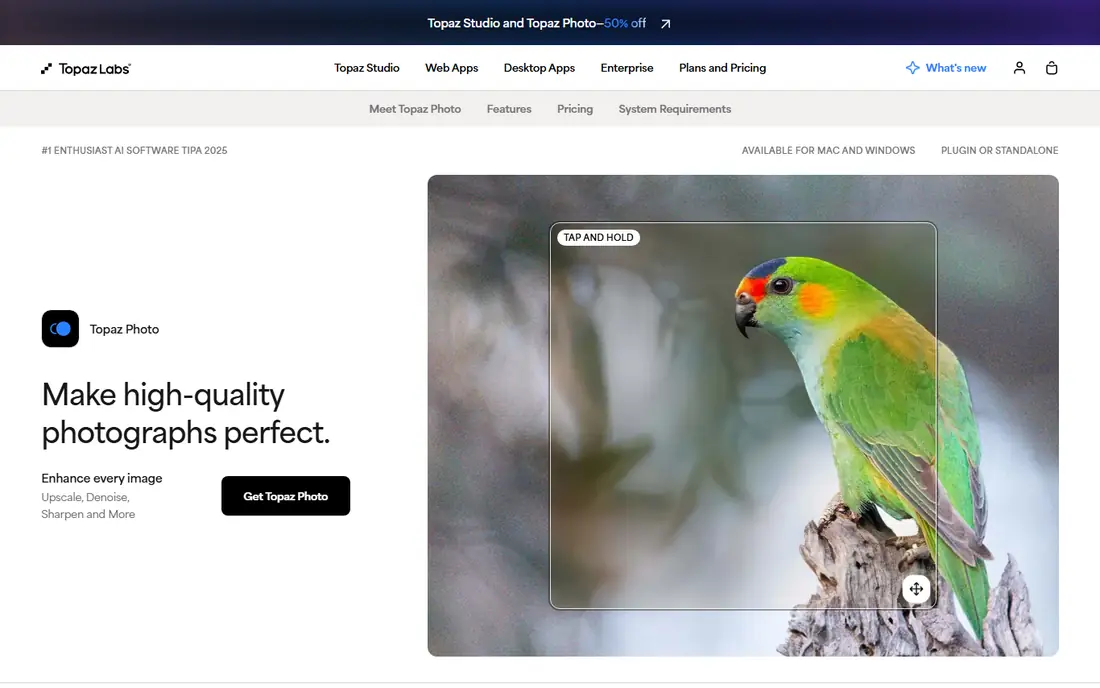
Topaz Photo AI is built to recover detail from soft, noisy or low resolution photos, and it is our pick for upscaling scanned prints. Its AI models sharpen edges, reduce noise and enlarge images while trying to keep natural texture, which helps old photos that were scanned at low resolution or taken with older cameras. Batch processing makes it practical for a folder of family photos rather than a single image.
The honest catch is that strong settings can create a waxy or over processed look, especially on faces. The best results come from moderate settings and a comparison with the original at full size. Topaz is less suited to repairing large tears or missing areas, where Photoshop manual tools work better. For detail, noise and size, though, it is one of the most reliable tools on this list.
- Strong sharpening, noise removal and upscaling
- Batch processing
- Works as a standalone app or plugin
- Can over sharpen if settings are high
- Desktop only focus

VanceAI offers a set of web based AI tools for old photo restoration, including repair, enhancement, colourisation and upscaling. Uploading a scanned photo and getting a restored version in minutes is appealing for family projects, and the separate tools let you choose repair without colourisation, or enhancement without upscaling. That control helps avoid unwanted changes to a photo that should stay close to the original.
The limits are credit based pricing and variable results on badly damaged images. Large tears, missing faces or heavy mould damage may still need manual editing, and running many photos through credits can cost more than a desktop app over time. For a handful of scanned prints that need a fast, clear improvement, VanceAI is a convenient and effective choice.
- Web based old photo restoration
- Separate tools for repair, colour and upscaling
- No install needed
- Credit based pricing can add up
- Results vary with severe damage
Remini is a phone app known for enhancing old, blurry or low resolution photos, with a focus on faces. It works well for a quick project, such as improving a grandparent photo for a family chat or a print, because the workflow is simply upload, enhance and save. The app also offers colourisation and background tools, making it a handy all round phone enhancer.
The catch is the smoothed look that can appear on faces when enhancement is pushed too far, and the subscription needed for regular use. Remini is best for casual restoration and sharing, not for archival quality prints where natural grain and detail matter. Use it for phone viewing and small prints, and keep the original scan untouched as a backup.
- Very easy phone workflow
- Strong face enhancement
- Quick results for social sharing
- Subscription needed for full use
- Face results can look smoothed
MyHeritage Photo Enhancer is designed for family historians who want to improve old photos and, if they wish, colourise them. Enhancement sharpens faces and detail, while colourisation adds plausible colour to black and white images. Because it sits inside MyHeritage, enhanced photos can be linked to people in a family tree, which helps when sharing research with relatives.
The main limit is ecosystem fit. The free allowance is limited, and the full value appears for users who already use MyHeritage for genealogy. For a standalone restoration job, a general tool such as Topaz or VanceAI may be cheaper. For family history work, the combination of enhancement, colourisation and tree linking is a genuine benefit.
- Built for family history research
- Enhancement and colourisation in one place
- Links to family tree tools
- Best value inside MyHeritage ecosystem
- Free use is limited
HitPaw Photo Enhancer is a desktop app that offers AI models for general enhancement, face recovery, denoising and upscaling. The workflow is straightforward: load photos, choose a model, preview and export. That simplicity suits users who want a desktop tool without learning Photoshop, and batch support helps with a set of scanned photos from one album.
The drawback is consistency. Some photos improve dramatically, while others gain only a modest boost, and the interface offers less fine control than Photoshop or Topaz. HitPaw is a good middle ground for casual desktop restoration, especially when the goal is clearer phone or web viewing rather than a museum grade print. Keep expectations realistic for badly damaged originals.
- Simple desktop workflow
- Models for faces, general photos and noise
- Batch support
- Results can vary by photo type
- Interface is basic
Fotor is a web based photo editor with an AI enhancer that can improve sharpness, colour and lighting in a few clicks. It suits users who want to tidy many photos quickly, perhaps for a family album online or a social post, without installing software. The wider editor also offers cropping, filters and design tools, so a restored photo can be prepared for sharing in the same place.
The limit is restoration depth. Fotor will not repair large tears, rebuild missing detail or match the control of Photoshop for serious damage. It is best seen as a quick enhancer rather than a true restoration studio. For lightly faded or soft photos, the free plan is a low risk way to test whether AI enhancement helps before paying for a specialist tool.
- Web based editor with AI enhancer
- Free plan for basic use
- Batch and design tools included
- Restoration depth is limited
- Some features need a paid plan
Lets Enhance focuses on upscaling and enhancement, using AI to enlarge images while improving detail, colour and tone. It works well for scanned prints that need to be printed larger, or for old digital photos that look soft at modern screen sizes. Batch processing and a clear credit system make it easy to plan a project with many images.
The catch is scope. Lets Enhance does not offer the manual repair tools needed for torn or stained prints, so severe damage should be handled elsewhere first. For clean but low resolution originals, it is a reliable and simple option. Compare an upscaled result with the original at the intended print size, since upscaling cannot invent detail that was never in the photo.
- Web based upscaling with colour and tone options
- Batch processing
- Clear credit system
- Focus is upscaling, not damage repair
- Credits needed for large jobs
How we picked these
We compared official feature pages, pricing pages, app listings and public reviews for AI tools that restore, enhance or upscale photos. We favoured tools with current AI models, a clear free trial or free plan, and honest limits for severe damage. We also mixed phone apps, web tools and desktop editors, since restoration needs differ for a single phone photo and a large scanned archive.
We did not claim hands on testing that did not happen. Our comparison is based on vendor published features, pricing and user reports about face quality, colour accuracy and upscaling results. For important prints, we recommend testing a tool on a copy of one photo before running a full album through it.
What to check before you restore a photo
Start with a high quality scan and keep the original file untouched. Scan prints at 300 dots per inch or higher where possible, save a backup copy, and work only on copies. That habit protects the original if an AI tool produces a poor result or changes a face in an unwanted way.
Damage type and tool fit
Match the tool to the damage. Fading, softness and noise suit AI enhancers and upscalers. Tears, stains and missing areas need manual repair in Photoshop or a professional restorer. Colourisation is a creative choice, not a recovery of true colour, so keep a black and white version alongside any colourised copy.
Faces and realism
Check faces at full size before you accept a result. AI face enhancement can smooth skin, change expressions or invent detail, especially on small or damaged faces. Moderate settings usually look more natural than maximum enhancement. For a print that will be framed, a slightly softer but honest result often ages better than an over processed one.
Output size and printing
Decide the final use before you upscale. A photo for phone viewing needs far less resolution than a framed print, and upscaling beyond the intended size adds little benefit. Test a small print first, check colour on paper, and keep the restored file in a lossless format where possible.
FAQ
What are the best ai tools for image restoration for old family photos?
Topaz Photo AI is our pick for detail and upscaling, while VanceAI and Remini suit fast phone or web restoration. Photoshop is best when damage needs manual repair. For family history projects, MyHeritage adds tree linking and colourisation. The right tool depends on damage type and whether you want a quick improvement or a careful print.
Can AI restore a torn or badly damaged photo?
AI can improve many damaged photos, but it cannot reliably rebuild large missing areas, faces or text that are gone from the original. Tears, stains and mould damage often need manual editing or a professional restorer. Use AI for enhancement and upscaling, and keep expectations realistic for severe damage.
Is AI colourisation accurate?
No, AI colourisation guesses plausible colours based on training data, it does not recover the true colours of a black and white photo. Results can look pleasing, but clothing, sky and skin tones may differ from reality. Keep the original black and white version, and treat colourisation as an artistic interpretation rather than a historical record.
Should I use a phone app or desktop software for restoration?
Phone apps such as Remini are fast for sharing and small prints, while desktop tools such as Photoshop and Topaz offer more control for larger prints and serious damage. Web tools such as VanceAI and Lets Enhance sit between the two, with no install and good batch handling. Choose based on output size and how much manual control you want.
How do I protect original photos during restoration?
Scan prints at a high resolution, save the original scan in a separate folder, and work only on copies. Back up originals to a second location, such as an external drive or cloud storage. That way a poor AI result or an accidental overwrite never loses the only copy of a family photo.
Are AI photo restoration tools safe for private family photos?
Most tools process uploads on their servers, so check each vendor privacy policy before uploading sensitive family photos. Prefer tools with clear data handling statements, delete uploads where the service allows it, and avoid uploading photos of children or private documents to a service you do not trust. For very sensitive originals, a desktop tool that processes files locally is a safer choice.