Best AI Image Outpainting Tools in 2026: 8 Tools Compared
The best AI image outpainting tools in 2026, compared for expanding photos, changing aspect ratios and filling new canvas space naturally for creators.

- Editor's choice
 Adobe Photoshop
Professional outpainting control
Starts at$22.99 per monthVisit adobe.comFull review - Great alternative
 Adobe Firefly
Web based generative expand
Starts atSee websiteVisit firefly.adobe.comFull review - Also consider
 Canva Magic Expand
Marketers designing in Canva
Starts atSee websiteVisit canva.comFull review
TL;DR:
- Adobe Photoshop Generative Expand is our pick for professional outpainting, with the most control over the new canvas area.
- Canva Magic Expand is the best choice for marketers who design the whole asset in Canva and need a new size fast.
- Clipdrop Uncrop is the fastest dedicated tool for a quick ratio change, such as a portrait into a wide banner.
- Outpainting invents new image content, so check invented areas closely before using an expanded image as a factual record.
Quick comparison
| Tool | Best for | Starts at | Free plan? | |
|---|---|---|---|---|
| Adobe Photoshop | Professional outpainting control | $22.99 per month | Free trial | Visit |
| Adobe Firefly | Web based generative expand | See website | Yes | Visit |
| Canva Magic Expand | Marketers designing in Canva | See website | Yes | Visit |
 Clipdrop Uncrop | Quick ratio changes | $15 per month | Yes | Visit |
 Fotor AI Expand | Simple browser based expansion | $8.99 per month | Yes | Visit |
 Picsart AI Expand | Social and mobile expansion | See website | Yes | Visit |
 PhotoRoom | Product image expansion | See website | Yes | Visit |
 Magnific | High volume production expansion | $20 per month | No | Visit |
The best AI image outpainting tools
Outpainting, also called uncropping or generative expand, extends an image beyond its original edges. The AI invents the missing surroundings: more sky, more room, more background, so a photo fits a new aspect ratio or layout. It is ideal for social banners, ads and print layouts, but the invented area is new content, not a recovered part of the original photo, so factual images need care.

Photoshop Generative Expand is the professional standard for outpainting. Drag the crop tool beyond the canvas, optionally type a prompt for what should fill the new area, and Photoshop generates the extension on its own layer, so your original stays untouched. That control matters for client work: you can generate several versions, mask the best parts together, and retouch seams by hand.
The single app plan costs 22.99 dollars per month billed annually, with a trial, and standard plans include a limited monthly generative credit allowance. Heavy users may need a higher tier or extra credits. For photographers, designers and advertisers who expand images for paid work, Photoshop offers the best blend of quality and control on this list.
- Generative Expand with prompt control
- Non destructive layers
- Best quality for commercial work
- Subscription only
- Generative credits limit heavy use on standard plans
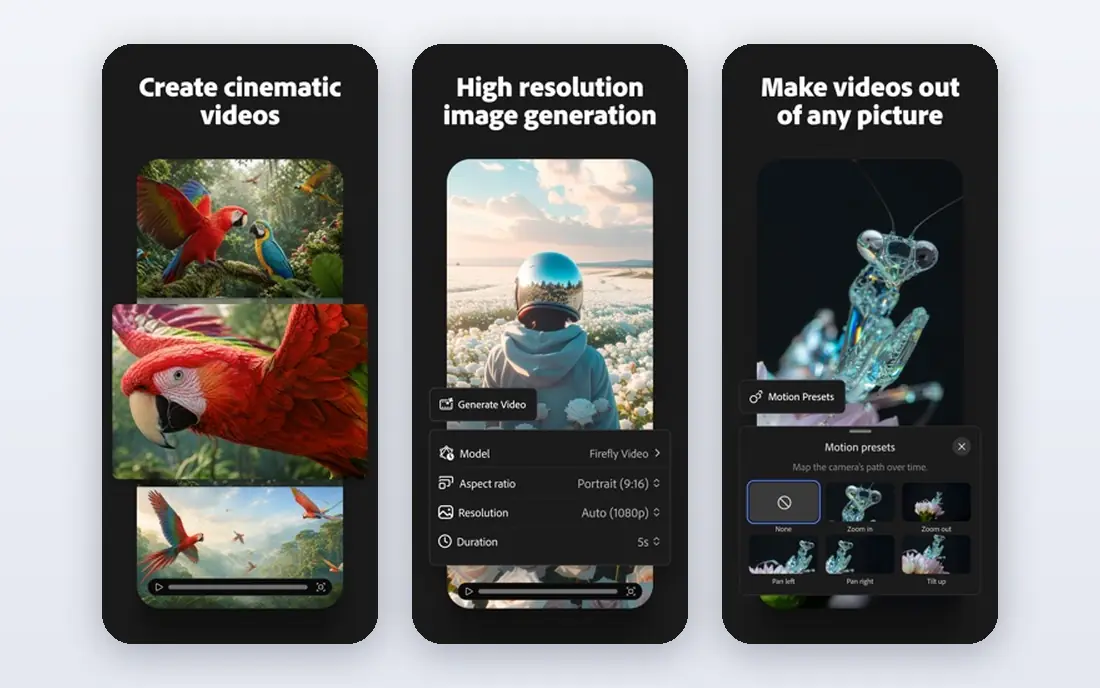
Adobe Firefly brings generative expand to the web, so you can extend an image in a browser and then finish the design in Adobe Express or Photoshop. The free tier lets you test expansion on your own images, while paid plans raise credit limits for regular use. For Adobe users who do not need Photoshop's full retouching toolkit for every job, Firefly is a faster route to an expanded image.
The trade off is control. Firefly offers fewer masking, layer and retouching options than Photoshop, so complex commercial jobs still end up in Photoshop for finishing. Use Firefly for quick expansions and social assets, and Photoshop when the expanded area must blend perfectly at full size.
- Browser based generative expand without a full Photoshop install
- Adobe Express integration
- Free tier for testing
- Less precise control than Photoshop
- Credits govern heavy use

Canva Magic Expand lives inside Canva's editor: drop in a photo, choose a new size, and Canva invents matching surroundings, after which you can add text, logos and graphics on top in the same project. That convenience is why marketers like it. A social post, ad or presentation slide can go from one photo to several sizes without leaving Canva.
Magic Expand requires Canva Pro, and control is lighter than in Photoshop: you get fewer options for guiding the invented area or fixing seams by hand. For marketers who design the whole asset in Canva anyway, that trade off is worth it. For photographers who need pixel level control, Photoshop remains the better pick.
- Expansion inside the design editor
- Instant use of the new size for text and graphics
- Huge template library
- Magic Expand needs Canva Pro
- Less fine control than Photoshop
Clipdrop Uncrop, from Stability AI and now part of Jasper, is a focused tool for one job: pick a target ratio, place your image in the new frame, and let the model outpaint the rest. It is fast and genuinely good on skies, open backgrounds and simple scenes, which makes it ideal for turning a portrait photo into a wide banner in seconds. A free tier covers limited use, while Pro costs 15 dollars per month.
The limits show on detail. Fine detail and faces near the new edges can soften, so Clipdrop suits scenery and quick social reframes more than tight portraits. For a fast ratio change without opening a full editor, though, Uncrop is the simplest tool on this list.
- Focused, fast uncrop tool
- Ratio presets
- Part of a wider Clipdrop editing toolkit
- Full Uncrop quality sits on the Pro plan
- Faces near new edges can soften
Fotor AI Expand offers a simple browser based route to outpainting: upload a photo, drag the canvas to a new size, and let the AI fill the extra space. Its premium plans start at 8.99 dollars per month, with a free version for short tests. The interface suits beginners and casual users who need a quick edit without learning a full photo editor.
Fotor is not a professional retouching tool. Control over the invented area is limited, and free outputs carry limits that paid plans remove. For quick social images, blog headers and casual expansions, Fotor does the job at a low price. For client work at full resolution, check the result closely or use Photoshop instead.
- Very simple browser workflow
- Low entry price
- Drag and drop canvas control
- Less control than Photoshop
- Free version limits features and output quality
Picsart AI Expand brings outpainting to a social first editor used widely on mobile and web. Upload a photo, expand the canvas, and finish the post with effects, text and stickers in the same app. That all in one flow suits creators who shoot, expand and publish from a phone, and the free tier lets you test expansion before paying.
Quality varies more than with Photoshop or Clipdrop, especially on detailed scenes and faces, and control over the invented area is limited. For social posts and quick content, Picsart is convenient and fast. For print or commercial work where seams matter, a desktop editor gives a safer result.
- Mobile and web expansion in a familiar social editor
- Effects and stickers for finished posts
- Free tier for testing
- Quality varies by image type
- Advanced control is thinner than desktop editors
PhotoRoom puts expansion inside a seller workflow rather than treating it as a separate experiment. Its resize tool changes canvas dimensions and uses AI to fill extra space around a product background, after which you can adjust, retouch and export from the same workspace. Batch editing on the web helps sellers adapt a whole catalog to new marketplace sizes.
PhotoRoom works best on product and studio style images with clean backgrounds. Complex photographic backgrounds need closer checking, since invented detail can look wrong at full size. For sellers who expand product photos regularly, the workflow saving is real. For general photography, a dedicated editor may give better results.
- Expansion inside a product image workflow
- Batch editing on the web
- Resize presets for marketplaces
- Best on product and studio style images
- Photographic backgrounds need closer checking
Magnific is a production tool for teams that expand, upscale and enhance images at volume, with an API for automated workflows. Its Premium plan costs 20 dollars per month, with annual billing lower, and paid plans include a commercial license. For studios, agencies and e-commerce teams that process many images, the API and batch handling matter more than a simple browser tool.
For a one off expansion, Magnific is overkill and has no free plan to test with. For production pipelines where expansion is one step among upscaling, enhancement and delivery, Magnific offers quality and automation that casual tools cannot match. Check output on your own product and scene types before wiring it into a pipeline.
- High quality expansion for production volume
- API for automated workflows
- Commercial license on paid plans
- No free plan
- Higher price than casual tools
- Overkill for one off expansions
How we picked these
We compared official product pages and pricing pages for outpainting tools that were live in October 2026, and checked public reviews for quality on different image types. We kept tools with a clear generative expand or uncrop feature, not just a canvas resize with solid color fill, and we marked pricing as See website where vendor pricing had changed recently or was not clearly published. We excluded tools whose current pricing we could not verify from the vendor site.
Using outpainting well
Outpainting is easy to run and easy to misuse. These habits keep results believable.
Start with a clean, high resolution original
Expansion quality depends on the source. A sharp, well exposed photo with a simple background expands far better than a noisy, compressed image. If the original is low resolution, upscale or accept a smaller final size rather than stretching a weak file further.
Expand in modest steps
A small expansion, such as portrait to square or a modest widening, blends better than doubling the canvas in one pass. For large changes, expand in stages and check each step, or generate several versions and mask the best areas together in Photoshop.
Check invented detail at full size
Zoom to full resolution and look at the new edges for repeated patterns, warped text, extra fingers, odd architecture and mismatched light. These flaws hide at thumbnail size and show in print or on a large screen. Fix seams by hand or regenerate the worst areas.
Do not present expanded images as untouched records
An outpainted photo contains invented content. For news, evidence, scientific or documentary use, that matters: label the image as edited, or use a solid color or mirrored fill instead of AI invention. For ads and social design, invented backgrounds are normal, but keep the main subject truthful.
FAQ
What is the best AI image outpainting tool?
Adobe Photoshop Generative Expand is the best overall pick for professional control and quality, while Canva Magic Expand is best for marketers working in Canva. Clipdrop Uncrop is best for a fast ratio change, and Fotor is the cheapest simple option for casual use.
What is the best free AI image outpainting tool?
Clipdrop, Canva, Fotor and Picsart all offer free tiers or trials for outpainting, though free use carries limits on resolution, volume or features. Adobe Firefly also offers a free tier for web based expansion. For regular or commercial use, a paid plan removes those limits and usually improves output quality.
Can outpainting change a portrait photo into a wide banner?
Yes, that is a classic outpainting job: a vertical portrait can be expanded sideways into a wide banner by inventing background on both sides. Results are best when the background is simple, such as sky, a wall or a blurred scene, and faces near the new edges need a close check for softening or distortion.
Is outpainting the same as upscaling?
No. Outpainting adds new canvas area around an image and invents content to fill it, changing the aspect ratio. Upscaling keeps the same image and increases its resolution and detail. Many tools offer both, but they solve different problems, and a project may need both steps in sequence.
Does outpainting work on product photos?
Yes, and it is widely used for marketplace listings that need a new size or ratio. PhotoRoom and Magnific suit product workflows well, while Photoshop gives the most control for hero product images. Check invented backgrounds closely, since a warped shelf, label or shadow can mislead buyers.
What should I avoid when using outpainting?
Avoid presenting an outpainted image as an untouched record for news or evidence, avoid expanding low resolution originals too far, and avoid trusting the first generation without a full size check. Generate several versions, inspect the new edges, and fix or regenerate any area that looks invented in a bad way.