Best AI Image Enhancement Tools in 2026: 9 Tools Compared
Compare the best AI image enhancement tools for upscaling, denoising and face repair, with current pricing, free plans and honest trade-offs for each pick.
- Editor's choice
 Topaz Photo AI
Professional detail recovery
Starts at$39 per monthVisit topazlabs.comFull review - Great alternative
 Remini
Old portraits and faces
Starts at$9.99 per monthVisit remini.aiFull review - Also consider
 Let's Enhance
Print-ready upscaling
Starts at$9 per monthVisit letsenhance.ioFull review
TL;DR:
- Topaz Photo AI is our pick for most photographers who want detail recovery, noise reduction and upscaling in one desktop app.
- Upscayl is the best free starting point, since it runs locally and costs nothing for basic upscaling.
- Remini is strongest for old phone portraits and faces, while Let's Enhance suits print work that needs clean high-resolution files.
- Check output limits, commercial-use terms and file formats before you pay, because credit systems and subscriptions differ a lot.
- Always keep the original file, because AI enhancement invents detail and can change faces, text and fine textures.
Quick comparison
| Tool | Best for | Starts at | Free plan? | |
|---|---|---|---|---|
| Topaz Photo AI | Professional detail recovery | $39 per month | Free trial | Visit |
| Remini | Old portraits and faces | $9.99 per month | Yes | Visit |
| Let's Enhance | Print-ready upscaling | $9 per month | Yes | Visit |
 HitPaw Photo Enhancer | Simple browser and desktop fixes | $24.99 per month | Yes | Visit |
 Adobe Photoshop | Full editing plus AI enhancement | $22.99 per month | Free trial | Visit |
 Luminar Neo | Creative editing with AI tools | See website | Free trial | Visit |
 DxO PhotoLab | Raw photos and noise control | See website | Free trial | Visit |
 Upscayl | Free local upscaling | Free | Yes | Visit |
 VanceAI | Quick online batch enhancement | See website | Yes | Visit |
The best AI image enhancement tools
These are the best AI image enhancement tools we found for real jobs, from rescuing a blurry phone photo to preparing a file for a large print.
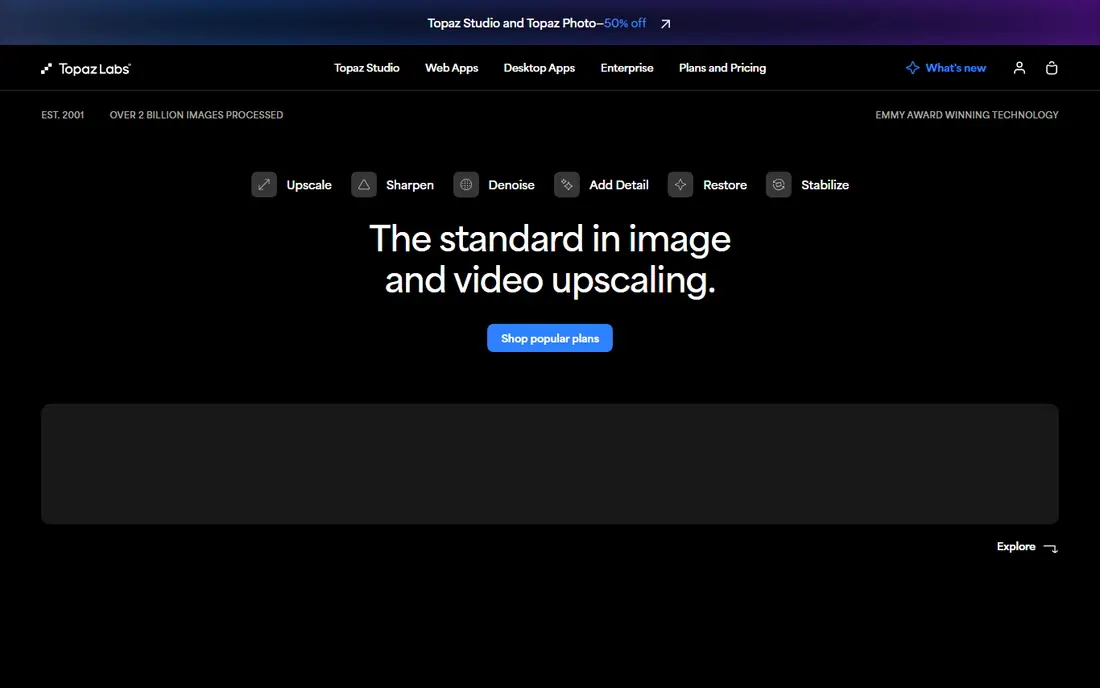
Topaz Photo AI is our pick for most people who take image quality seriously. It combines denoise, sharpen and upscale tools in one app, and its Autopilot mode suggests settings for each photo so you do not have to guess where to start. It also works as a plug-in for Lightroom and Photoshop, which helps if you already edit in those apps.
The catch is cost and hardware. At $39 per month, or $199 per year on the annual route listed by Topaz, it is a real commitment for casual use. Local processing also rewards a modern graphics card, and very large batches can take time. Still, for photographers who regularly fix noisy, soft or low-resolution files, it earns its place at the top of this list.
- Strong noise reduction
- Sharp upscaling
- Face recovery for soft portraits
- Subscription pricing
- Needs a capable computer for local processing
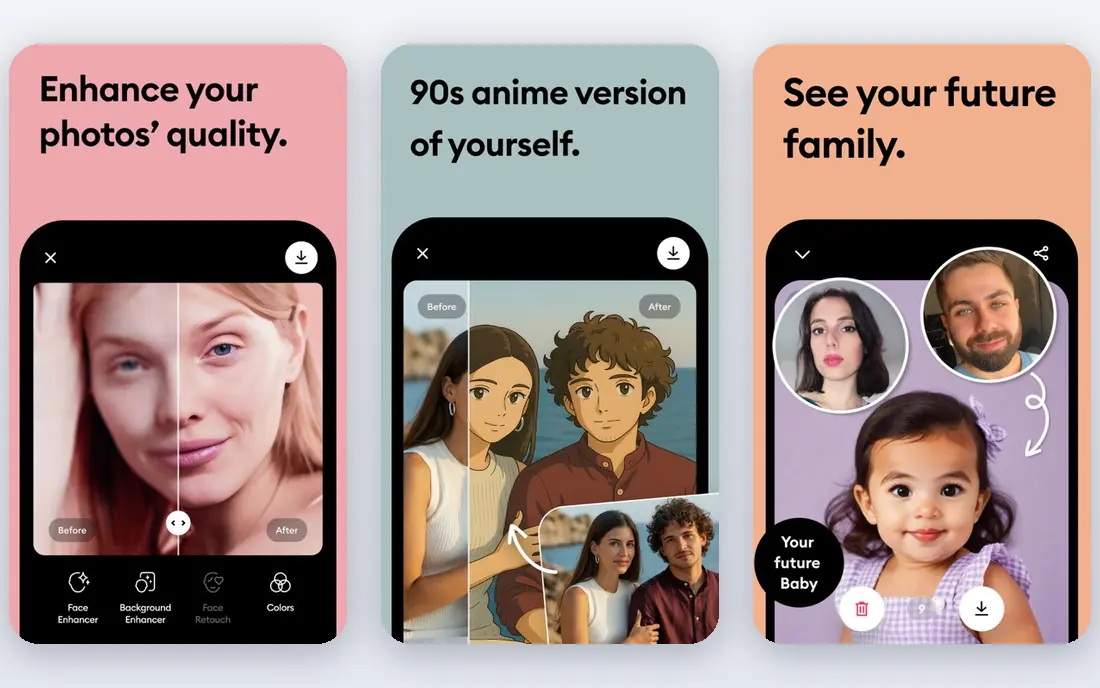
Remini is the app many people reach for when a family photo is faded, blurry or tiny. Its face tools rebuild eyes, skin texture and hair detail in a way that general upscalers often miss, and the mobile workflow is simple: upload, enhance, save. That simplicity is the point, and it makes Remini a good choice for non-editors.
The trade-off is control. Remini is cloud based and portrait focused, so it is less suited to precise print work or batch editing of product photos. Free access is limited, and paid pricing can vary by app store and plan, so check the price in your own store before you subscribe. For faces, though, few tools are this easy to use.
- Very strong face reconstruction
- Simple mobile workflow
- Good for old photos
- Cloud processing
- Paid plans vary by platform and region

Let's Enhance is built around one job: turning a small image into a larger, cleaner file for print or web. Its credit system is easy to understand, with one image generally using one credit, and the $9 per month annual plan includes 100 credits. New accounts also get a small free credit allowance to test the output before paying.
It is not a full photo editor, and that is worth knowing before you sign up. If you need masking, color grading or layered retouching, pair it with an editor rather than expecting Let's Enhance to do everything. For ecommerce sellers, designers and print shops that need reliable upscaling, it is a focused and predictable option.
- Credit-based plans
- Clean high-resolution output
- Simple web workflow
- Credits limit heavy use
- Fewer manual editing controls
HitPaw suits people who want a clear three-step workflow without learning a complex editor. You upload a photo, pick a model for faces, color, low light or noise, and download the result. The desktop version adds batch work, while the browser version is handy for a one-off fix on a borrowed computer.
Pricing needs a careful look. The monthly online plan is listed at $24.99 per month, with weekly and yearly options also available, and the free tier caps what you can export. That makes HitPaw better for occasional fixes than for high-volume production, unless you move to a yearly plan. For casual users, the free tier is a useful way to judge quality first.
- Online and desktop versions
- Face, color and scratch repair models
- Up to 8x upscaling
- Free version limits resolution and volume
- Online processing can be slow on large files
Photoshop is the right pick when enhancement is only part of a larger edit. Its AI features help with upscaling, object removal and generative fill, but the real strength is what comes after: you can retouch, recolor, mask and export with precision. If you already pay for Adobe tools, using Photoshop for enhancement costs nothing extra beyond your plan.
The downside is complexity. Beginners may spend more time learning the interface than fixing photos, and at $22.99 per month on the annual plan it is not the cheapest single-purpose tool here. Choose Photoshop when you want control over every pixel, not just a one-click fix.
- Deep manual control
- Super Resolution and AI tools
- Huge plug-in and tutorial ecosystem
- Steeper learning curve
- Subscription only
- More app than many people need
Luminar Neo appeals to photographers who want enhancement plus creative editing in one friendly app. Its AI tools can improve portraits, adjust lighting and clean up detail without the layered complexity of Photoshop. The interface is visual and approachable, which helps if you edit for fun or for social media rather than for clients.
It is not the most precise tool for forensic-style detail recovery, and Skylum changes editions and bundles from time to time, so confirm the current price and what is included before you buy. For people who want good-looking results fast, with room to get creative, Luminar Neo is a solid middle ground.
- AI portrait, sky and lighting tools
- Friendly interface
- Works as a plug-in
- Enhancement is part of a broader editor
- Pricing and editions change often
DxO PhotoLab is a favorite among raw shooters for a good reason: its DeepPRIME noise reduction cleans high-ISO files while keeping detail intact. It also applies automatic lens corrections based on camera and lens profiles, which saves time on large shoots. If your problem is noise in raw files rather than a tiny JPEG, start here.
It is less of a rescue tool for old, damaged portraits than Remini or Topaz, and it assumes you shoot raw or at least care about careful processing. Check current pricing on the DxO site, since editions and upgrade prices vary. For photographers with a raw workflow, it is one of the most dependable tools on this list.
- Excellent raw processing
- Strong DeepPRIME noise reduction
- Lens corrections
- Less focused on face reconstruction
- Desktop only for serious work
Upscayl is our pick for anyone who wants to try AI upscaling without paying or uploading photos to a server. It is free and open source, runs on Windows, macOS and Linux, and supports batch processing with several models. A paid Cloud Pro option exists for people who prefer hosted processing, but the desktop app itself costs nothing.
The trade-off is polish. Upscayl will not rebuild a badly damaged face as well as a dedicated portrait tool, and its interface is functional rather than beautiful. It also relies on your own computer, so older machines will process slowly. Even with those limits, it is hard to beat for free, private upscaling.
- Free and open source
- Runs locally
- Batch processing
- Multiple AI models
- No cloud face repair depth
- Interface is basic
- Needs local computing power
VanceAI is a web suite rather than a single tool, with separate enhancers for portraits, product shots, old photos and general images. That separation helps, because a product photo and a damaged portrait need different treatment. You can test it in a browser without installing software, which suits occasional users and small teams.
Credit pricing is the main thing to watch. Heavy users can burn through credits faster than a flat subscription would cost, so compare your monthly volume before committing. Output quality also varies: clean product shots tend to fare better than heavily damaged faces. Used for the right job, VanceAI is a flexible online option.
- Separate tools for portraits, products and old photos
- Web based
- Batch options
- Credit pricing can add up
- Quality varies by model and image type
How we picked these
We compared official feature pages, pricing pages, app store listings and public documentation for tools that genuinely enhance images, rather than tools that only apply filters. We favored tools with clear upscaling, denoising, sharpening or face repair features, and we checked that each product is available today. We also weighed free tiers, local versus cloud processing, and commercial-use terms, because those details change the real cost.
We did not claim hands-on lab testing. Our comparison rests on vendor documentation, published pricing and public reviews, plus the practical question of who each tool fits. A tool that is excellent for print upscaling may be poor for old portraits, so we judged each one against its own job.
What to check before you pay
Start with the type of photo you fix most often. Portrait tools shine on faces but can distort text and backgrounds, while print upscalers protect edges and detail but may leave a damaged face looking flat. Test the same photo in two or three tools, including a free option, before you subscribe.
Next, look at limits and licensing. Credit plans cap monthly volume, subscriptions may restrict commercial use on lower tiers, and cloud tools require you to upload personal photos. If you work with client images, local processing and clear commercial terms matter more than a low headline price. Keep originals, compare outputs at full size, and avoid pushing enhancement so far that skin, text or fabric looks artificial.
Watch for invented detail
AI enhancement does not recover lost information perfectly. It predicts what detail might have been there, which is fine for a social post but risky for evidence, medical images or historical archives. For those uses, keep the original untouched, label enhanced copies clearly, and avoid tools that change faces or text without a way to review the result.
FAQ
What is the best AI image enhancement tool for most people?
Topaz Photo AI is our pick for most photographers, because it covers noise, sharpness, upscaling and face repair in one desktop app. If you only need occasional upscaling, Upscayl is free and worth trying first.
What is the best AI image enhancement software for print?
Let's Enhance and Topaz Photo AI both suit print work, since they produce clean high-resolution files with attention to edges and detail. Check the maximum output size on your plan before you commit to a large print run.
Is there a good free AI tool for image enhancement?
Yes. Upscayl is free, open source and runs locally, and Remini, Let's Enhance, HitPaw and VanceAI all offer limited free access. Free tiers usually cap resolution, volume or exports, so they are best for testing or occasional fixes.
Can AI enhancement fix a very blurry photo?
It can improve many blurry photos, especially portraits, but it cannot guarantee a perfect result. Heavy blur, tiny faces and missing detail give the model little to work with, and the output may look plausible without being accurate.
Does AI enhancement change faces?
Yes, it can. Face repair models rebuild eyes, skin and hair, which can alter likeness in subtle ways. Compare the output with the original, and be cautious when using enhanced portraits for identification or official purposes.
What is the difference between upscaling and enhancement?
Upscaling increases pixel dimensions, while enhancement also reduces noise, sharpens detail, corrects color or repairs damage. The best AI image enhancement tools combine both, but some tools focus mainly on size, so check what each plan actually does.