Best AI Background Removal Tools in 2026: 8 Tools Compared
Compare the best ai background removal tools in 2026 for product photos, portraits, and design work, with free plans, quality, and pricing notes today.
- Editor's choice
 remove.bg
One-click removal
Starts atSee websiteVisit remove.bgFull review - Great alternative
 Adobe Express
Design plus removal
Starts atSee websiteVisit adobe.comFull review - Also consider
 Canva
Design and removal
Starts atFreeVisit canva.comFull review
TL;DR:
- remove.bg is our pick for one-click removal, since it handles most photos fast with little setup.
- Adobe Express and Canva suit designers who want removal inside a full design tool, not just a single purpose app.
- Photoroom and Pixelcut fit sellers who need product photos with clean backgrounds and simple templates.
- The best ai tools for background removal differ on hair detail, batch work, and output resolution, so test with your own hardest photos.
Quick comparison
| Tool | Best for | Starts at | Free plan? | |
|---|---|---|---|---|
| remove.bg | One-click removal | See website | Yes | Visit |
| Adobe Express | Design plus removal | See website | Yes | Visit |
| Canva | Design and removal | Free | Yes | Visit |
 Fotor | Photo editing plus removal | See website | Yes | Visit |
 Photoroom | Product photos | See website | Yes | Visit |
 Pixelcut | Seller photos | See website | Yes | Visit |
 Slazzer | Batch removal | See website | Yes | Visit |
 Erase.bg | Simple free removal | See website | Yes | Visit |
The best ai background removal tools
Background removal used to mean careful manual selection. AI tools now cut out a subject in seconds, though quality still varies on hair, fur, glass, and busy backgrounds. The best ai background removal tool for your work depends on photo type, volume, and whether you also need design tools.
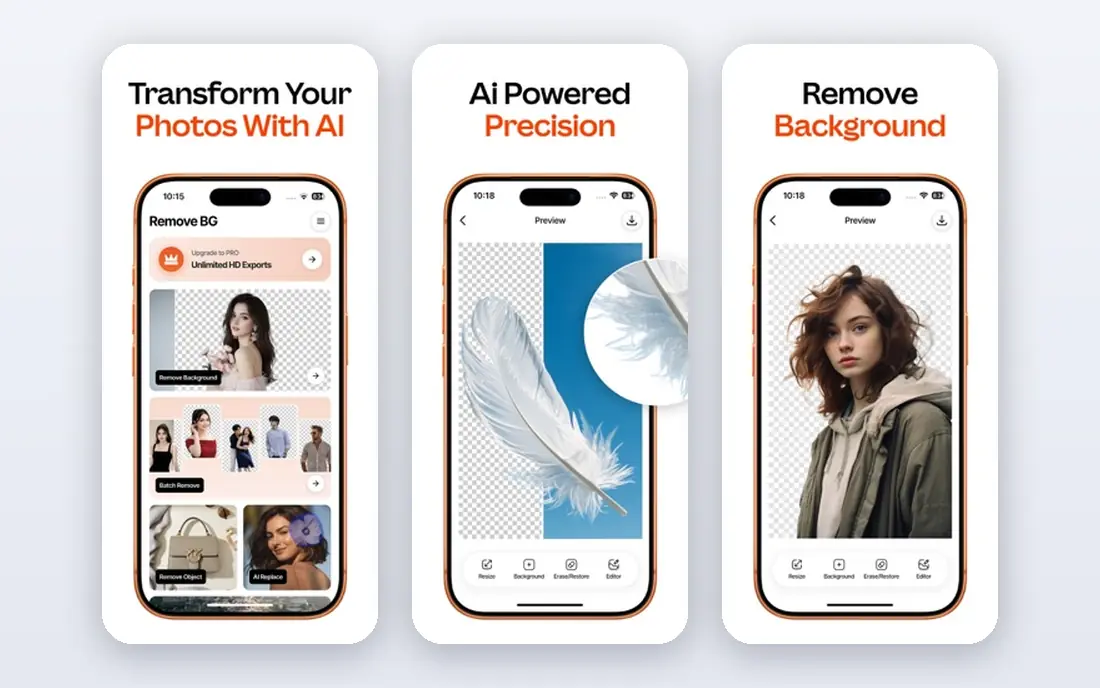
remove.bg is the simplest tool on this list, and that simplicity is why it leads. Upload a photo, and the AI returns a cutout with a transparent background in seconds, without sliders or manual tracing. It handles people, products, cars, and animals well in most cases, and it offers desktop, mobile, and API options for teams that need removal at scale. For a quick profile photo, product shot, or social graphic, few tools are faster.
Free use has a clear limit: free downloads are lower resolution, while full resolution images need credits or a subscription. That makes remove.bg free best for web use and drafts, not for large print work. For high volume or high resolution work, compare credit pricing with Slazzer or a design tool plan. For speed and ease, remove.bg remains our first pick.
- Very fast one-click removal
- Good edge quality for most photos
- API and batch options
- Free downloads are lower resolution
- Full resolution needs credits or a plan

Adobe Express pairs background removal with templates, text, and design tools, so a cutout can go straight into a social post, flyer, or ad. Remove a background, drop the subject onto a new color or scene, add text, and export, all without switching apps. That workflow suits marketers and small business owners who design their own graphics. Adobe image quality is also strong on portraits and products.
Free plan users get core tools, while some premium templates, assets, and features need a paid plan. A user who only needs removal and nothing else may prefer remove.bg for speed. For a user who designs regularly, Adobe Express is a strong all in one pick, with removal as one feature among many.
- Removal inside a full design tool
- Templates and editing
- Adobe quality
- Some features need a premium plan
- Best for users who also design
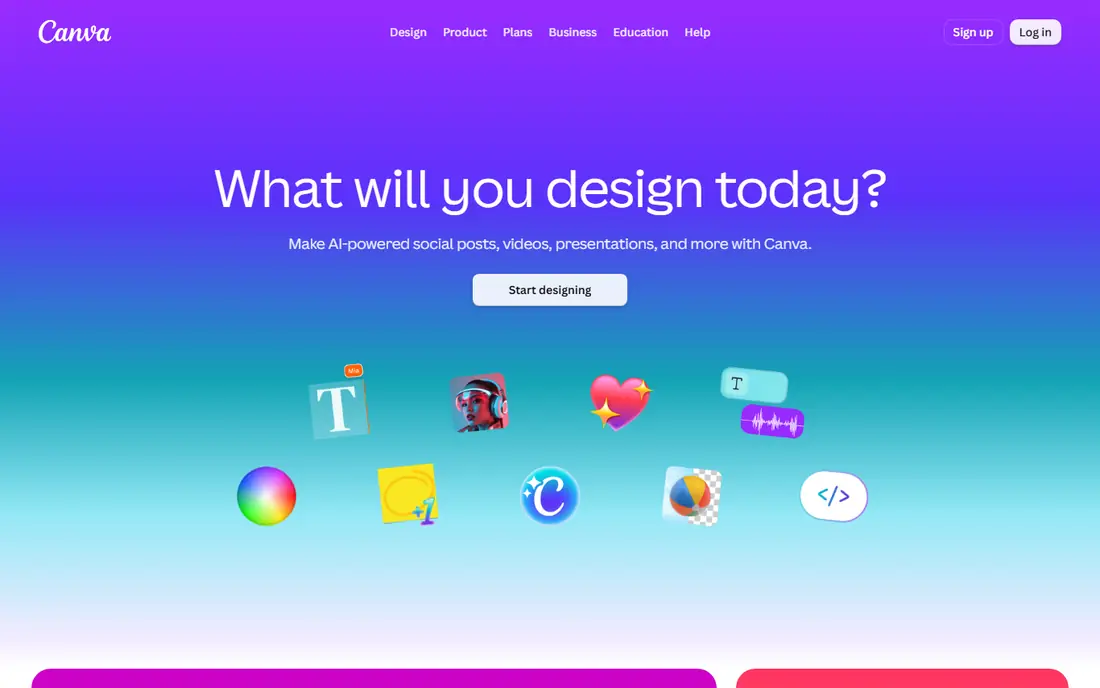
Canva is a popular design tool, but readers should note one key detail: the background remover is a Pro feature, not part of the free plan. Pro users can remove a background in one click, then place the subject into any Canva template, from product listings to social posts. That makes Canva ideal for sellers and marketers who already pay for Pro and want removal without a second tool.
Free plan users cannot use the remover, so Canva is not a free removal pick. If you already use Canva Pro, it is an excellent choice, since you avoid extra subscriptions and keep designs in one place. If you only need free removal, start with remove.bg, Erase.bg, or Photoroom free options instead.
- Removal inside Canva design
- Huge template library
- Easy for beginners
- Background remover needs Canva Pro
- Free plan lacks this feature
Fotor combines AI background removal with a full photo editor, so a user can cut out a subject, adjust color and light, and add a new background in one place. That editing depth helps when a cutout needs touch-ups, such as softening edges or fixing exposure after removal. Fotor also offers batch removal and templates, which help sellers who process many product photos at once.
The free plan includes removal with limits, and some advanced features need a Pro plan. Free exports may also carry limits that matter for professional use. For a user who wants editing plus removal in one affordable tool, Fotor is a practical middle ground between a single purpose remover and a full design suite.
- Removal plus full photo editing
- Batch tools
- Templates for sellers
- Free plan has limits and ads
- Some advanced tools need Pro
Photoroom is built for sellers who photograph products on a phone. Upload a product photo, remove the background, and place the item on a clean white, colored, or scene background with one tap. Templates for marketplaces and social shops speed listing creation, and batch tools help a seller process a full inventory shoot. That seller focus makes Photoroom faster for product work than a generic editor.
General design work is thinner. Photoroom does not replace Canva or Adobe Express for full graphic design, and free exports carry limits on resolution or features. For an online seller who needs clean, consistent product photos fast, Photoroom is one of the best picks on this list.
- Built for product photos
- Background templates
- Batch processing
- Free exports may carry limits
- Best for sellers, less for general design
Pixelcut is another seller friendly tool, with a strong mobile app for quick product photos. Users can remove a background, add a studio style backdrop, and export a listing ready image from a phone. Upscaling and batch tools help sellers who shoot many items in one session. The interface is simple, which suits sellers who are not professional photographers or designers.
Pro features, including higher resolution exports and some templates, need a paid plan. Desktop users may find the mobile app stronger than the web version. For a mobile first seller who wants fast, clean product photos, Pixelcut is a strong alternative to Photoroom, and both are worth testing with your own product shots.
- Fast mobile removal
- Product templates
- Background and upscaling tools
- Some features need a Pro plan
- Desktop workflow is simpler than mobile
Slazzer suits teams that need to remove backgrounds from many images at once. It offers batch processing, a desktop app, and an API for developers who want removal built into another workflow. Edge quality is solid for products and portraits, and the tool handles common photo types without much manual work. That volume focus makes Slazzer a good pick for studios, agencies, and marketplaces.
The interface is utilitarian compared with Canva or Adobe Express, since Slazzer focuses on removal, not design. Free credits are limited, so high volume work needs a paid plan or credit pack. For batch removal at scale, Slazzer is a dependable and cost aware choice.
- Good batch and API options
- Desktop app available
- Solid edge quality
- Free credits are limited
- Interface is more utilitarian than design tools
Erase.bg offers a simple path to a transparent background: upload a photo, get a cutout, download it. There is no design suite to learn, which suits a user who only needs a clean cutout for a presentation, document, or social post. Results are fast for people, products, and animals, and the tool works well in a browser without installing software.
Free downloads carry resolution limits, and editing tools are thinner than in Fotor, Canva, or Adobe Express. A user who needs touch-ups, new backgrounds, or templates should pair Erase.bg with a design tool, or pick a fuller editor from the start. For simple, free removal, Erase.bg is a clean and honest pick.
- Simple free removal
- Fast results
- No design learning curve
- Free downloads have resolution limits
- Fewer editing tools than Fotor or Canva
How we picked these
We compared official feature pages, pricing pages, and photo use cases for each tool, focusing on edge quality, hair and fur handling, batch work, output resolution, and free plan limits. We favored tools that are still actively offered in 2026 and that serve distinct needs, from one-click removal to seller templates and batch processing. We did not claim hands-on testing. We weighed ease of use, result quality for common photo types, free usefulness, and pricing clarity.
We also checked that each tool truly uses AI removal, not just manual selection tools. A photo editor with only a manual eraser scored lower than a tool with one-click AI cutouts. That filter keeps this list focused on AI removal, not general photo editing.
How to get cleaner cutouts
Even the best AI tool struggles with tricky photos, so shoot and check with care.
Test with hair, fur, and glass
Run your hardest photos through a free trial before you commit. Hair, fur, transparent glass, and busy backgrounds reveal quality gaps fast. A tool that looks perfect on a simple product shot may still struggle on a portrait with loose hair.
Check resolution before you publish
Free downloads are often lower resolution than paid exports. Check the final image size for your use, whether web, marketplace, or print. A cutout that looks fine on a phone may look soft on a large product page or printed flyer.
Fix edges in an editor when needed
Small edge flaws can be softened in a photo editor or design tool. Zoom in at full size, check edges around hair and hands, and adjust feathering or background color if the tool allows it. A minute of edge checking saves a listing that looks rushed.
FAQ
What is the best ai background removal tool?
remove.bg is our pick for fast one-click removal, while Adobe Express and Canva suit users who also design. Photoroom and Pixelcut suit sellers, and Slazzer suits batch work. The best ai background removal tool for you depends on photo type, volume, and whether you need design tools too.
What are the best ai tools for background removal for free?
remove.bg, Erase.bg, Fotor, and Photoroom offer free removal with limits, usually on resolution or credits. Free tools work well for web use and drafts. For high resolution or batch work, expect to pay for credits or a plan.
Can AI remove backgrounds from hair well?
AI handles most hair better than it did a few years ago, but loose hair, fur, and fine edges still challenge every tool. Test with your own portraits before you commit, and check edges at full size. Complex hair may still need a small manual touch-up in an editor.
Do these tools work for product photos?
Yes. Photoroom, Pixelcut, remove.bg, and Slazzer are all strong for product photos, with clean backgrounds and batch options. Sellers should test with their own products, lighting, and backgrounds, since results vary by photo quality.
Is background removal safe for my photos?
Most tools process uploads on their servers, so check the privacy policy before uploading sensitive or client photos. Avoid uploading private, medical, or confidential images to a free tool without reading its data handling terms. For sensitive work, prefer a tool with clear privacy and deletion terms.