Best Anaconda Alternatives in 2026: 8 Python Data Tools Compared
Compare anaconda alternatives for Python data science, notebooks and coding environments, with pricing and trade-offs, so you can pick the right setup.
- Editor's choice
 JupyterLab
Free notebooks for data work
Starts atFreeVisit jupyter.orgFull review - Great alternative
 Visual Studio Code
Free general Python coding
Starts atFreeVisit code.visualstudio.comFull review - Also consider
 Google Colab
Cloud notebooks with free GPU access
Starts atFreeVisit colab.research.google.comFull review
TL;DR:
- Anaconda bundles Python, packages, and environments for data science, so alternatives range from full IDEs to cloud notebooks.
- JupyterLab and Visual Studio Code are free and flexible, making them the best starting point for most data learners and professionals.
- Google Colab and Kaggle suit quick experiments and GPU work without local setup, but they depend on a cloud account and internet access.
- PyCharm and DataSpell suit professionals who want a full IDE with debugging, refactoring, and database tools in one place.
Quick comparison
| Tool | Best for | Starts at | Free plan? | |
|---|---|---|---|---|
| JupyterLab | Free notebooks for data work | Free | Yes | Visit |
| Visual Studio Code | Free general Python coding | Free | Yes | Visit |
| Google Colab | Cloud notebooks with free GPU access | Free | Yes | Visit |
 Kaggle Notebooks | Data competitions and public datasets | Free | Yes | Visit |
 PyCharm | Full Python IDE for professionals | Free | Yes | Visit |
 DataSpell | Data science IDE from JetBrains | See website | Free trial | Visit |
 Spyder | Lightweight scientific Python IDE | Free | Yes | Visit |
 Posit | R and Python data science workbench | Free | Yes | Visit |
The best Anaconda alternatives
Anaconda Distribution packages Python with hundreds of data science libraries and a package manager called conda, plus tools for managing environments. The alternatives below replace different parts of that bundle: notebooks, IDEs, cloud compute, and package management. We compared official product and pricing pages for each tool.

JupyterLab is the notebook interface most data scientists already know, and it works without Anaconda if you install Python and Jupyter through another route such as pip or a system package manager. Notebooks let you run code in cells, see charts inline, and document analysis step by step, which suits exploration and teaching. Extensions add variable inspection, git integration, and table views.
The catch is that JupyterLab does not manage packages or environments for you. You will need to handle virtual environments and dependencies yourself, which is more work than Anaconda Navigator for beginners. For users comfortable with the command line, that control is a benefit, not a drawback.
- Free and open source
- Notebooks combine code, output, and notes
- Large extension ecosystem
- Environment and package management is left to you
- Less built-in debugging than a full IDE
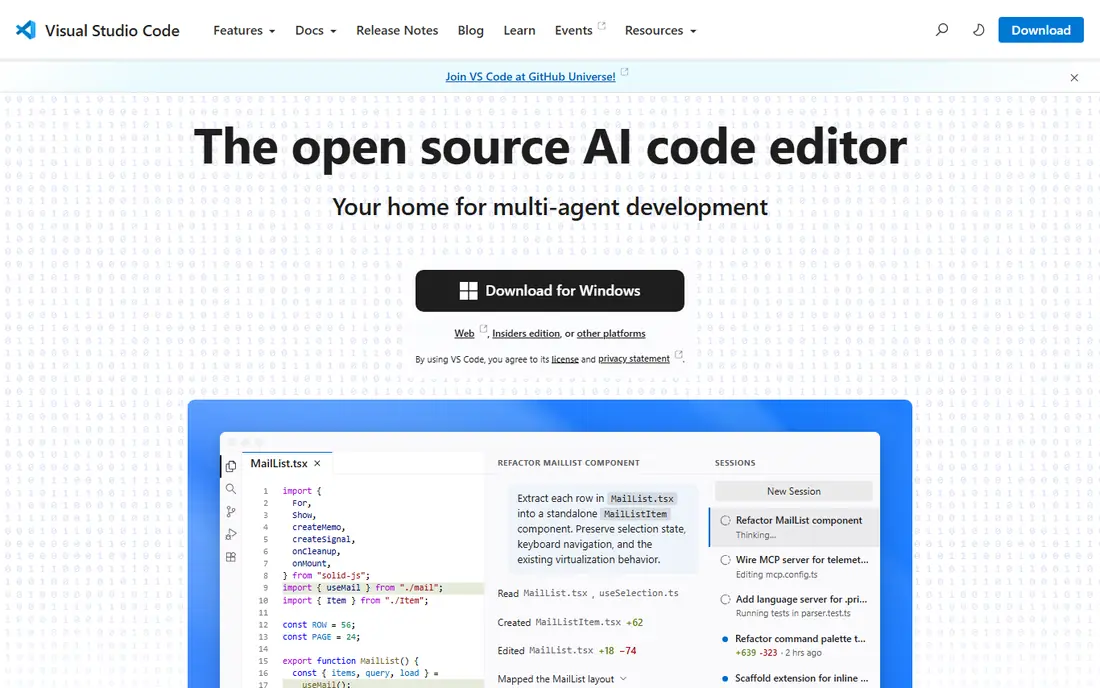
Visual Studio Code, with the Microsoft Python extension, is the most flexible free alternative to Anaconda for general Python work. It supports notebooks, debugging, linting, testing, and remote development, and it works with virtual environments created by venv, pip, or conda. Data scientists can run notebooks inside the editor while software engineers use the same tool for application code.
The trade-off is configuration. Out of the box, Visual Studio Code is a general editor, so you need to install extensions and set up an interpreter before data work feels smooth. Once configured, it is hard to beat for versatility, especially for teams that mix data analysis with software development.
- Free editor with strong Python extension
- Notebooks, debugging, and terminal in one window
- Huge extension marketplace
- Setup needs extensions and environment configuration
- Less data-focused out of the box than DataSpell

Google Colab runs Jupyter-style notebooks in the browser, hosted by Google, with free access to GPUs and TPUs for many workloads. That makes it ideal for learning, quick experiments, and sharing a notebook with a colleague who can run it without installing anything. Files can live in Google Drive, and collaboration feels similar to editing a shared document.
The honest limit is that free compute is shared and session-based. Long training runs can disconnect, and heavy users will need Colab Pro or Pro Plus for more reliable resources. Colab also depends on a Google account and internet access, so it is not a replacement for offline local work.
- Free notebooks in the browser with GPU access
- No local installation
- Easy sharing and collaboration
- Free sessions have time and resource limits
- Paid Colab Pro needed for longer and faster runs
Kaggle Notebooks combine cloud notebooks with a library of public datasets, competitions, and courses. Data scientists can start a notebook, attach a dataset in one click, and run code with free GPU or TPU access within a weekly quota. That dataset access is the real advantage over a bare notebook, since finding and cleaning data often takes longer than modeling.
The drawback is orientation. Kaggle is built around public data and community sharing, so private enterprise work with sensitive data may not fit its model. Free GPU quotas also limit long training runs, though paid options and local runs can cover heavier work.
- Free notebooks with GPU and TPU access
- Huge public dataset library
- Competitions and learning courses built in
- Weekly GPU quota on free accounts
- Platform is oriented around public data and competitions
PyCharm is a full Python IDE from JetBrains, with a free Community edition for pure Python and a paid Professional edition that adds data science, web development, and database tools. Its code completion, refactoring, and debugger help professionals maintain larger codebases, and it integrates with virtual environments and package managers.
The catch is that the data science features many Anaconda users want, such as advanced notebook support and database tools, sit in the paid Professional edition. For quick notebook exploration, JupyterLab or Colab may feel lighter, while PyCharm shines when a project grows into tested, production code.
- Strong code completion, refactoring, and debugging
- Built-in testing and version control
- Community edition is free
- Professional edition is paid and needed for data science and web features
- Heavier than a notebook for quick exploration
DataSpell is JetBrains's IDE built specifically for data science, combining notebooks, Python scripts, SQL consoles, and data visualization in one workspace. It understands dataframes, helps with code completion for data libraries, and connects to databases without leaving the IDE. Teams already using JetBrains tools will find the interface familiar.
The limitation is cost and community size. DataSpell is a paid product with a free trial, and its user community is smaller than Jupyter or Visual Studio Code, so finding tutorials and extensions takes a bit more effort. For dedicated data professionals who want an IDE rather than a notebook, it is still a strong choice.
- Built for data science workflows with notebooks and SQL
- Smart code assistance
- Strong database and visualization tools
- Paid product with no free edition
- Smaller community than Jupyter or Visual Studio Code
Spyder is a scientific Python IDE that ships with Anaconda but also works standalone, and it is a natural alternative for users who want a simple desktop IDE. It includes an editor, IPython console, variable explorer, and plots pane in one window, which suits researchers and engineers who work interactively. It is free and open source, with no subscription.
The honest drawback is polish and breadth. Spyder feels less modern than PyCharm or Visual Studio Code, and its plugin catalog is smaller. For focused scientific work, that simplicity is fine, but software engineers who need broad language support will prefer Visual Studio Code or PyCharm.
- Free and open source
- Variable explorer and plots built in
- Designed for scientists and engineers
- Less polished than JetBrains IDEs
- Plugin ecosystem is smaller than Visual Studio Code
Posit, formerly RStudio, now supports Python as well as R through its Positron editor and related tools. Data teams that work in both languages can use one workbench, share reports, and publish results with Posit Connect or Shiny. The desktop editor is free, which makes it easy to try alongside Jupyter or Visual Studio Code.
The trade-off is focus. If you work only in Python, Positron may not add much over Visual Studio Code, and the paid server products matter mainly for teams that need centralized publishing. For mixed R and Python teams, though, Posit is one of the few workbenches that treats both languages as first-class.
- Positron editor supports Python and R
- Free desktop tools
- Strong publishing and sharing options for reports
- Best value comes for teams using both R and Python
- Enterprise server products are paid
How we picked these
We compared official product pages for Python environments, notebooks, and IDEs that are actively maintained in 2026. We favored tools that support data science libraries, notebooks or interactive work, and environment management, and we included free, open source, and paid options. Where pricing was not published as a simple starting figure, we recorded See website.
How to choose an Anaconda alternative
Start with how you work. If you explore data in notebooks, JupyterLab, Colab, or Kaggle will feel most familiar. If you build production code, PyCharm, DataSpell, or Visual Studio Code give you debugging and refactoring that notebooks lack. If you work in both R and Python, Posit bridges the gap.
Handle environments carefully
Anaconda users rely on conda environments to isolate projects. If you move to pip and venv, learn to create one environment per project and record dependencies in a requirements file. If you still want conda, you can keep using it with JupyterLab or Visual Studio Code without installing the full Anaconda Distribution.
Try cloud notebooks for GPU work
Local laptops struggle with large models and long training runs. Colab and Kaggle give free GPU access for learning and experiments, which is often enough to test an idea before paying for cloud compute. For sensitive or production data, keep work local or in your own cloud account instead.
FAQ
Is Anaconda free?
Anaconda Distribution is free for many individual and small-team uses, with paid plans for larger commercial use under its current terms. Check the current license terms on the Anaconda site for your organization size, since terms have changed in recent years.
What is the best free alternative to Anaconda?
JupyterLab combined with Python installed via pip or a system package manager is the closest free notebook setup. Visual Studio Code with the Python extension is the best free general coding alternative, and Google Colab is the best free cloud option.
Can I use Jupyter without Anaconda?
Yes. You can install Python from python.org or your system package manager, create a virtual environment, and install Jupyter with pip. That setup gives you notebooks without the full Anaconda bundle.
Do I need a GPU for data science?
No, for most learning and tabular data work a normal laptop is enough. GPUs help mainly for deep learning and large image or text models, and Colab or Kaggle provide free GPU access for those cases.
Which tool is best for beginners?
Google Colab is the easiest start because it needs no installation and runs in a browser. JupyterLab is the best next step for local work, and Visual Studio Code suits learners who also want to build software beyond notebooks.